
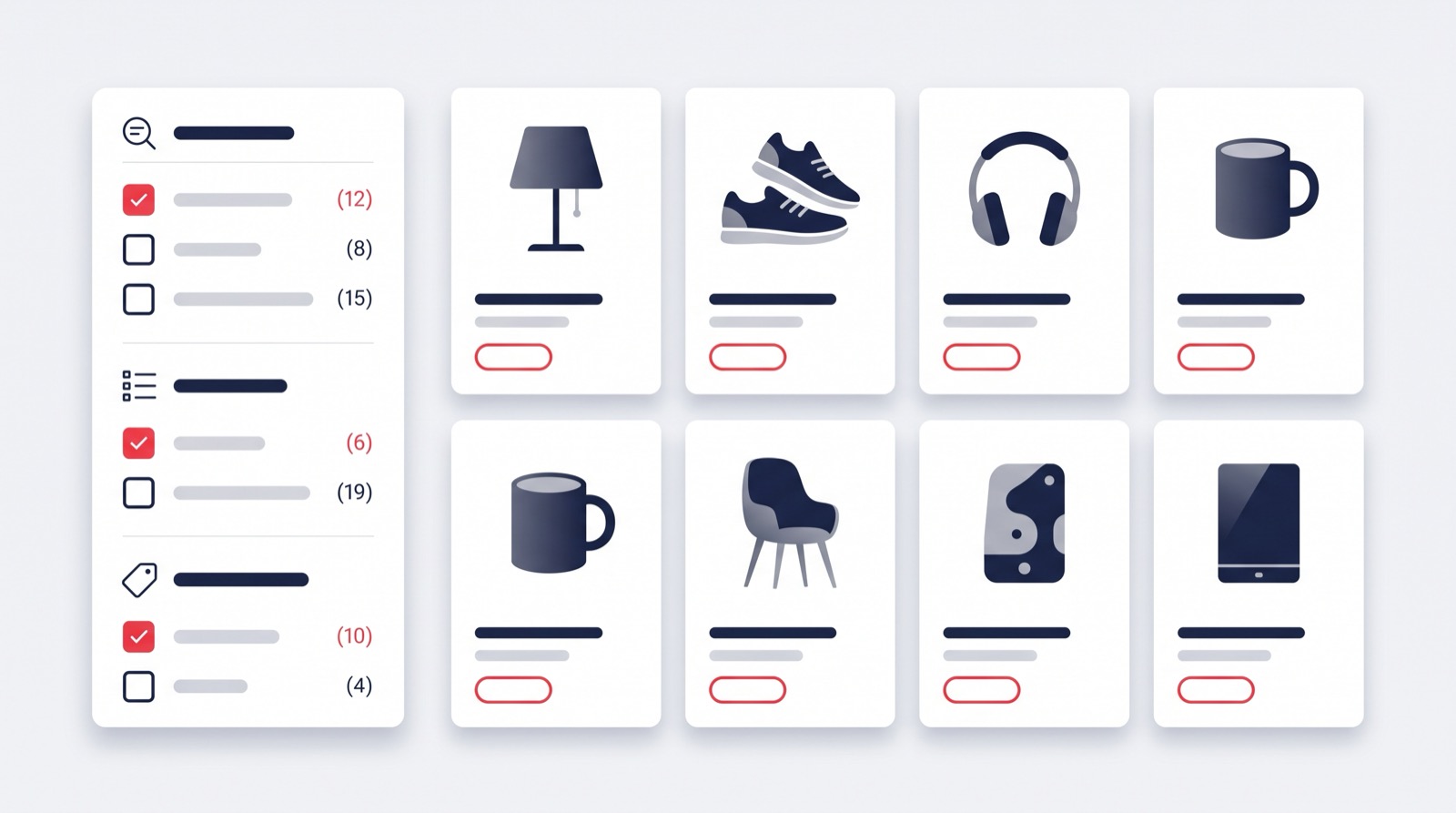
The catalog filter is where a shopper either finds the right product or leaves for a competitor. In Turboshop filters have become informative: every group is expanded by default, and each value carries a number — how many products the shopper will get if they pick it. No blind clicks, no empty result pages. Here is how it works, where the values come from and what it gives your store.
What changed in the filters
Filters used to be a collapsed accordion: to find out whether the catalog had the right colour or size, a shopper had to open every group manually. Product counts were not shown anywhere, so a click often ended with a single product — or an empty page.
The catalog sidebar now looks different:
- filter groups are expanded right away — “Colour”, “Size”, “Material” are visible without a single click;
- every value shows a product count — “Red (3)”, “XL (1)”;
- long lists are trimmed with a “Show more N” button, so the sidebar never stretches across three screens;
- values with no products are not shown at all, and a group left without a single non-empty value disappears completely.

The key part: the number is the real result of the click
The count next to a value is not “how many products of that colour exist in the store”. It is how many products the shopper will see right now, taking into account every active condition: the chosen category, the search query, other active filters, brand, availability and the price range.
This approach is called faceted, and it has one subtle but critical detail: values inside a group do not cancel each other out. If a shopper picks red, the neighbouring colours are not zeroed — they show how many products would be added if those were selected too. Inside a group the logic is “or”: red or blue. Between groups it is “and”: the chosen colour immediately recalculates the numbers in “Size” and “Material”, because that is a different condition.

One more detail that is easy to miss but breaks trust when it is done wrong: a product with variants counts as one card. If a T-shirt comes in five sizes, the shopper sees one item in the listing — and the counter shows one, not five. The number next to a filter always matches what the shopper actually sees.
Where filter values come from
Filter groups are built from product attributes you manage in the admin panel and assigned to products manually or via import. Custom product fields work alongside them: when a field has the “Filter” flag enabled, it becomes a filter group too, with the control matching the field type:
- dictionary (for example, “Sole type”) — checkboxes with values;
- yes/no (for example, “Hypoallergenic”) — a toggle;
- number (for example, “Length, cm”) — a “from–to” range.
In other words, you can filter your assortment by the parameters that matter in your niche — with no developer and no theme edits.

The same on mobile
Most shoppers arrive from a phone, so mobile filters are not a simplified version. The “Filters” button opens the “All filters” panel with the same expanded groups and the same numbers next to values. The shopper sees the count before applying the filter and closing the panel — no wasted taps on an empty result.

Why it matters for your store
- fewer bounces. An empty “No products found” page is one of the most common reasons shoppers close the tab. Values that lead nowhere simply are not there;
- a faster path to the product. The number tells you when to narrow down further and when to stop: “Red (3)” is ready to browse, “Red (120)” calls for a size;
- your assortment is visible. Expanded groups are effectively a showcase: the shopper sees you have 8 colours and 5 sizes even if they came for one thing;
- honesty instead of disappointment. Shoppers never click into “nothing” — the exact moment a store loses credibility;
- a purchasing hint. The counters show your gaps: 40 items in one colour and none in another.
Examples by niche
- Clothing and footwear. Size and colour are the primary filters: shoppers immediately see how many models exist in their size;
- Auto parts and components. Groups by manufacturer, type and compatibility — the counts rescue shoppers from long lists where 90 % of values are empty;
- Building materials. Numeric fields — thickness, length, weight — work as a “from–to” range, while other filters show what is left;
- Furniture and décor. Material and colour with counts help assemble a set without opening every product;
- Dropshipping with a large catalog. With tens of thousands of items, filters with numbers are the only comfortable way to get from “everything” to the right shelf.
What you need to configure
Nothing. The counts appear on their own — products just need attributes or custom fields with the “Filter” flag. The numbers are recalculated automatically when you edit a product, change prices or upload a new price list: after an import shoppers see current numbers, not yesterday’s.
The threshold after which a long list hides behind “Show more” is a catalog setting — eight values per group by default. The rest is handled by the platform: the counts are calculated in a single query and cached, so filters stay fast even on catalogs with hundreds of thousands of products.

FAQ
Does the number mean “how many such products exist in the store”? No. It is the number of products in the current selection: category, search, other filters, brand, availability and price included.
Why did neighbouring numbers in the same group stay unchanged after I picked a value? That is by design: inside a group the filter works as “or”, so neighbouring values show how many products would be added if selected as well.
Why did a value disappear? Values with no products in the current selection are hidden so that nobody clicks into an empty page. The value returns as soon as a matching product exists.
How are products with variants counted? As one catalog card: variants of the same product never inflate the counter.
Can I filter by my own product fields? Yes — enable the “Filter” flag on a custom field and it becomes a filter group.
Will this slow the catalog down? No: all counts are computed in a single query and cached, and the cache refreshes itself after products or prices change.
If you are only planning to create an online store, see what else the Turboshop online store builder can do.
Summary
Filters with product counts are a small interface change with a large effect on conversion: shoppers see the outcome before clicking, never land on empty pages and reach the product faster. Together with the reworked catalog navigation, filters form one coherent product discovery flow. Everything works right after the platform update, with no settings and no developer. Explore more platform capabilities in the “Features” section — and the easiest way to test filters on your own assortment is your own store.