
A shopper places an order with card payment and… sees a "Thank you" page with a small button that is easy to miss. They close the tab thinking everything is paid. You wait for money that will never come. Or another way: the payment went through, but the order status did not change because the server settings were missing a key, and a manager calls the shopper asking "did you pay?". Every such case is a lost sale or an awkward conversation. At Turboshop we rebuilt online payments so that the owner configures them in the admin panel and the shopper reaches payment effortlessly.
Why we moved payment settings into the admin panel
Some payment system settings used to live in server files. Changing a key or turning off test mode was impossible without a developer, and when a file was only partly filled, LiqPay payments were signed without a key and payment notifications did not change the order status. We saw stores accept payments "blind" for weeks because of this. So we adopted a simple principle: everything needed to accept online payments — keys, test mode, which provider is the main one — is configured in "Integrations → Payment services", with no developer involved.
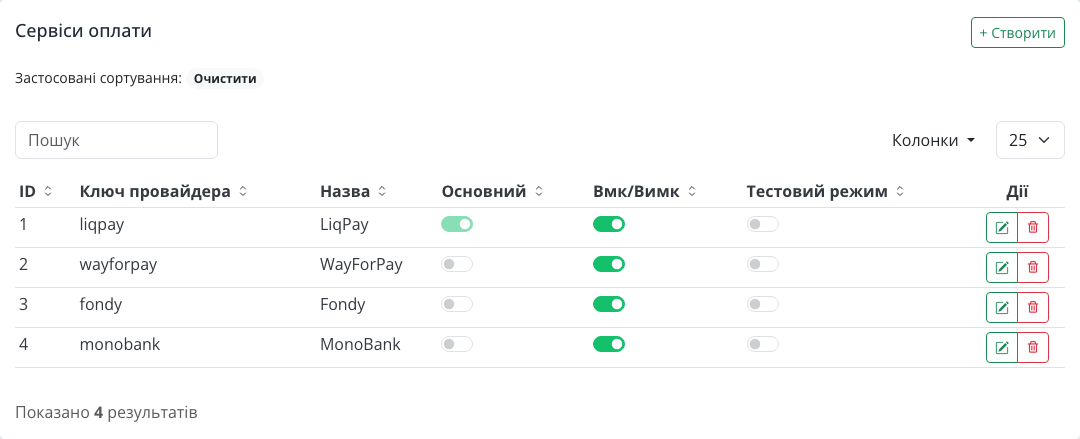
The list of payment services
The table shows every connected payment system: the provider key, name, which one is main, whether it is enabled and whether it runs in test mode. Only one provider can be main, and all online payments at checkout go through it.
The form adapts to the payment system
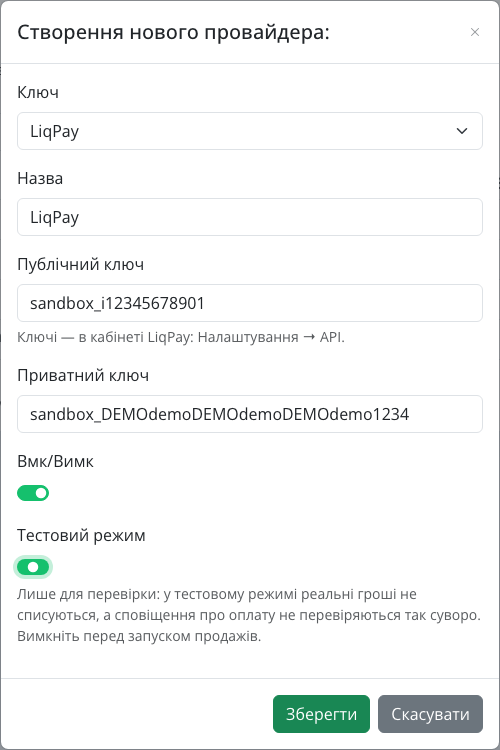
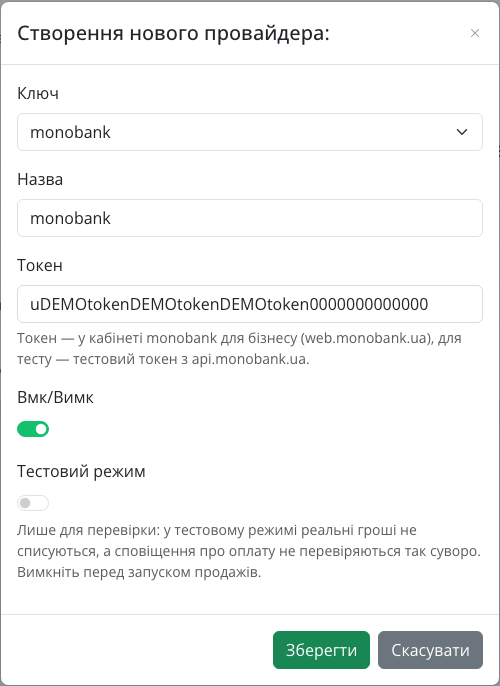
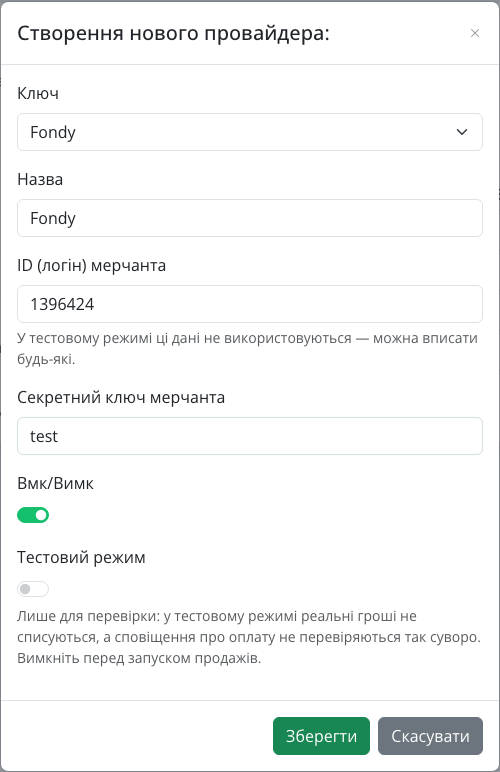
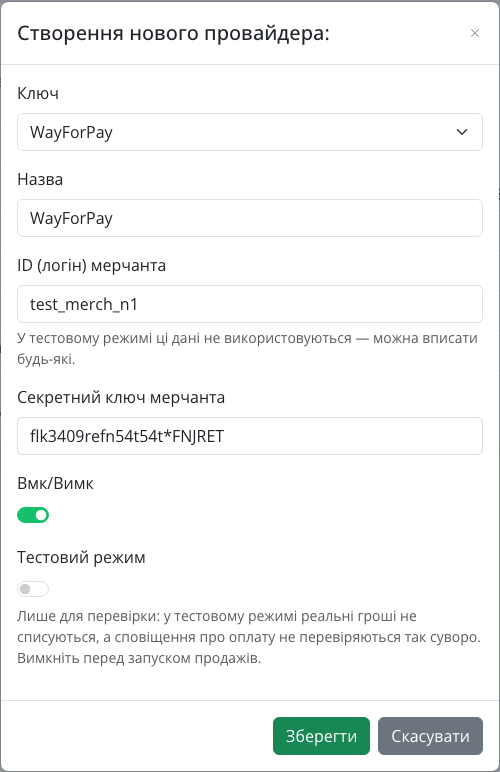
When creating a provider, you first choose the payment system in the "Key" field, and the form immediately shows only the fields it needs, with a hint on where to find the data. We did this because every system names its credentials differently, and the most common mistake is pasting a key into the wrong field.
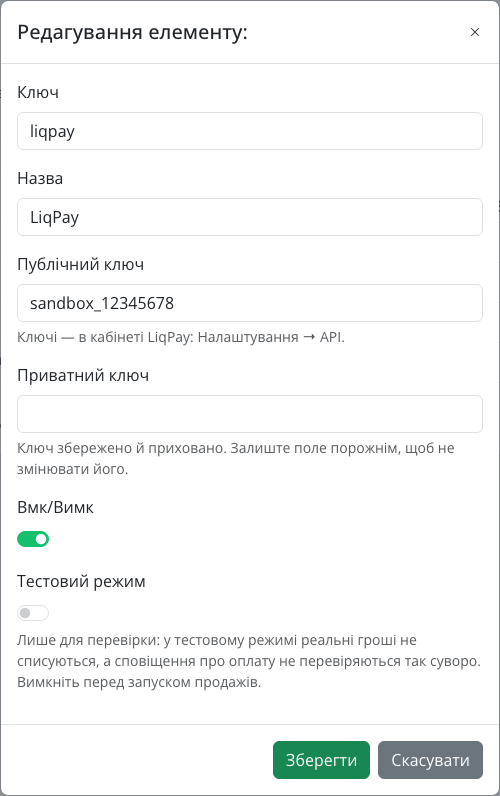
LiqPay — "Public key" and "Private key". Both come from the LiqPay dashboard: Settings → API.
monobank — only a "Token" field from the monobank business dashboard. There is no separate merchant ID, because monobank does not need one.
Fondy and WayForPay — "Merchant ID (login)" and "Merchant secret key" from the dashboard of the corresponding system.
The secret key stays hidden even from the administrator
We store the private key, token or merchant secret key encrypted in the database and never show it in lists. In the edit form this field is always empty, with a hint that the key is saved and hidden. Leave it empty and the key stays the same; type a new value and it is replaced. That way the key never leaks into a screenshot or a screen share.
Test mode: check the whole journey without real money
The "Test mode" switch is in every provider form and in its own table column. In LiqPay, test payments go the whole way and mark the order as paid although no money is charged, so you see exactly what the shopper will see. Fondy and WayForPay use the system's built-in test merchant. For monobank, you put a test token into the "Token" field. The main rule: turn test mode off before you start selling, and the form reminds you with a hint.
The payment notification address
The "Paid" status appears on the order automatically when the payment system sends the store a notification. For that, it needs the right address. We pass it automatically with every payment, but some dashboards ask you to enter a Service URL, Callback URL or Webhook manually. That is why the provider form has a payment notification address block with a "Copy" button.
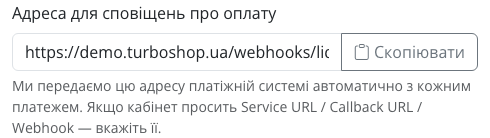
If the address is not on HTTPS or does not match the site domain, the form warns you immediately: the payment system will not be able to send the payment status. We added this warning because such a problem silently breaks payments: the money arrives, but orders stay unpaid.

What the shopper sees: auto-redirect to payment
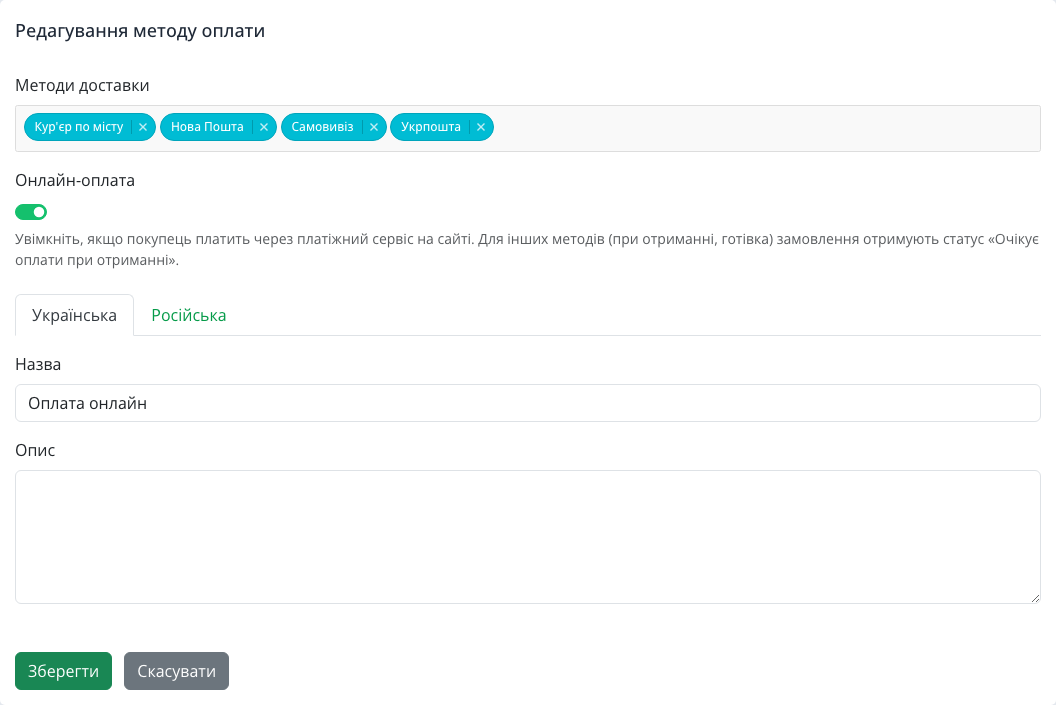
The shopper chooses online payment at checkout via the "Online payment" method, which has the "Online payment" switch turned on in the methods directory.
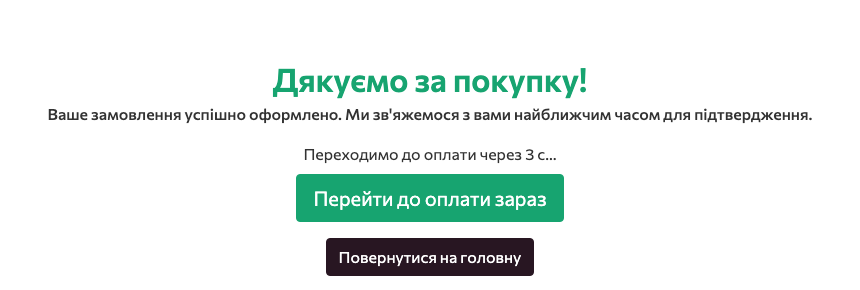
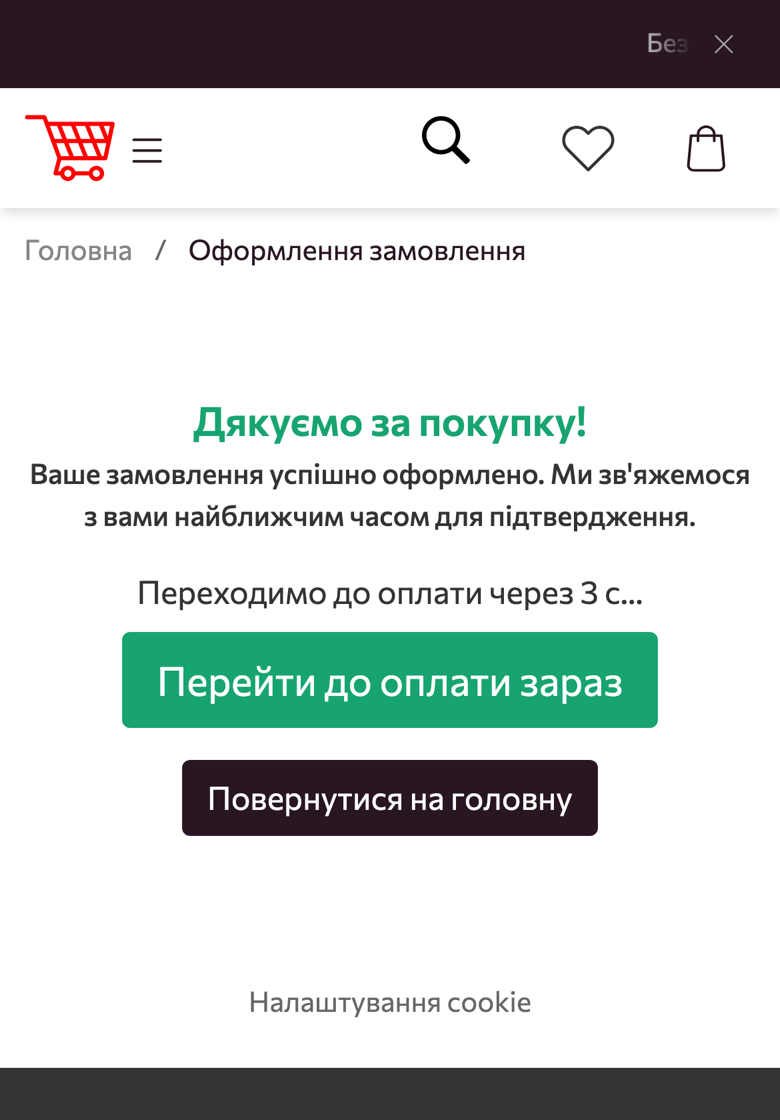
When the main provider is LiqPay or monobank, we do not make the shopper look for a button. The "Thank you" page shows a "Redirecting to payment in 3 s…" countdown and a "Go to payment now" button. If they do not click, the redirect happens by itself after three seconds.
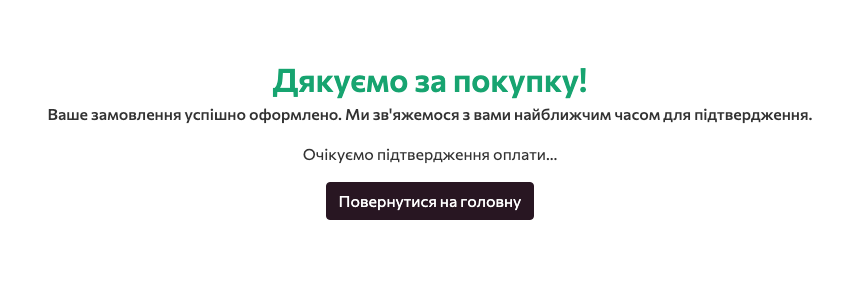
After paying, the shopper returns to "Thank you" and sees "Awaiting payment confirmation…". The page refreshes by itself until the payment system confirms the payment. This works even when the shopper paid in another browser or in a banking app.
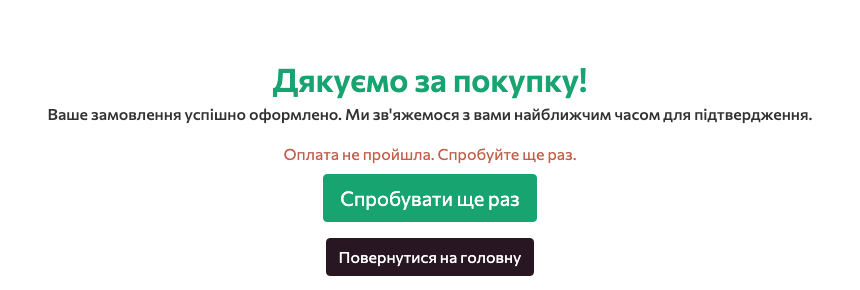
If the payment failed, the shopper is not left wondering: they see "Payment failed. Please try again." and a "Try again" button. The auto-redirect fires once per order, so refreshing the page does not open payment again. For Fondy and WayForPay, payment still opens in a window on top of the site.
Reliability and security you do not see
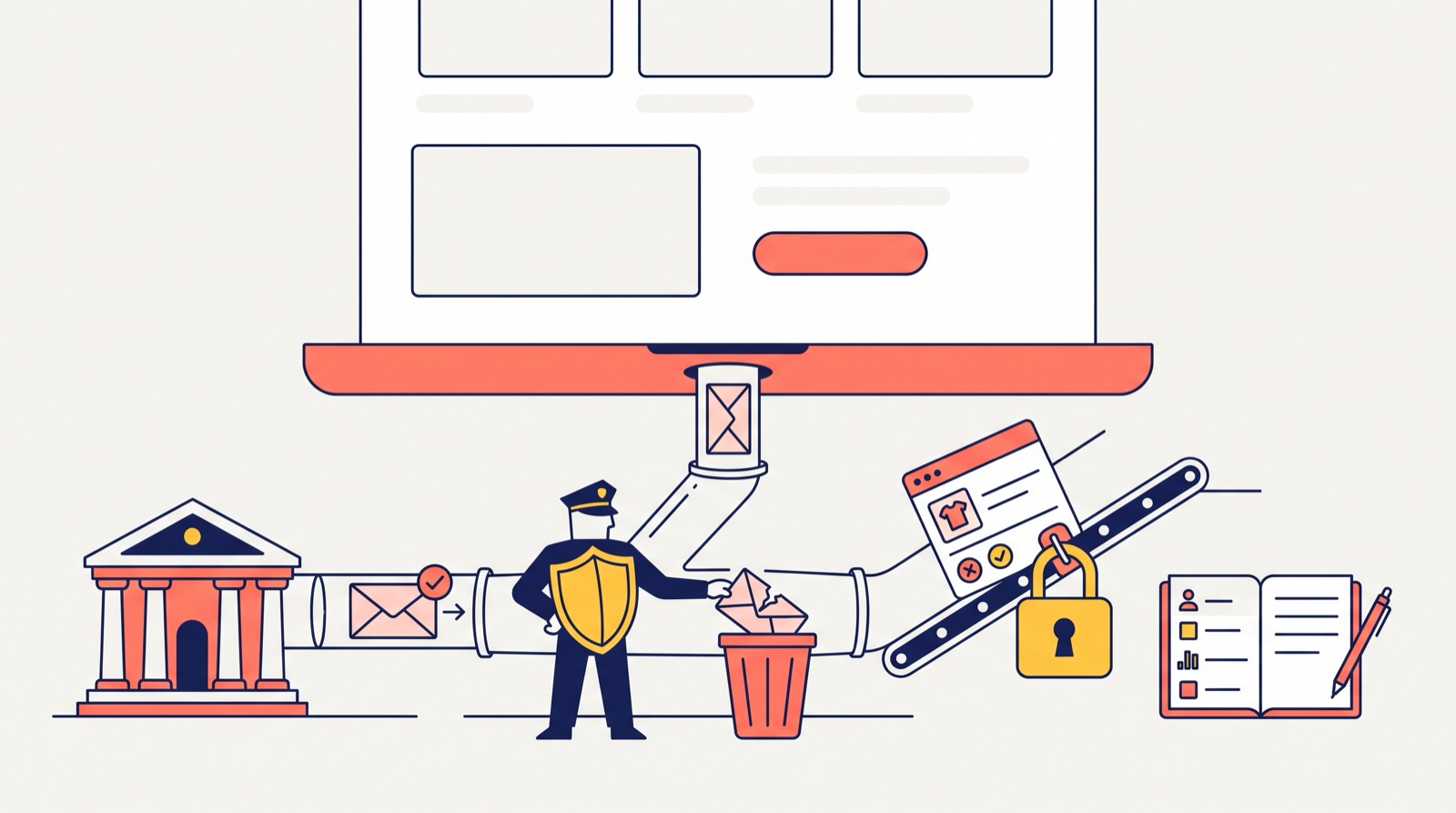
- The "Thank you" page never marks an order as paid. The status changes only after a notification from the payment system.
- Paid stays paid. A late notification about an earlier failed attempt will not cancel a successful payment; only a refund of that same payment can.
- Protection against forgery. Fondy and WayForPay test notifications are accepted only for the main, enabled provider, and unverified or damaged requests are rejected, just like with LiqPay and monobank.
- Separate logs without secrets. Fondy and WayForPay keep their own logs of accepted and rejected notifications. They contain no signatures, keys, card number, email or payer phone; records are kept for 30 days.
How to connect online payments
- Open "Integrations → Payment services". If the system you need is already in the table, open it with the edit button; if not, click "Create".
- Choose the payment system in the "Key" field, then fill in the name and credentials following the hints under the fields.
- Turn on "Test mode" and go through payment on the site as a shopper.
- If the payment system dashboard asks for a Callback URL, copy it from the notification address block.
- Mark the provider as main, turn test mode off, and check that the "Online payment" method has the "Online payment" switch on.
Who gains the most
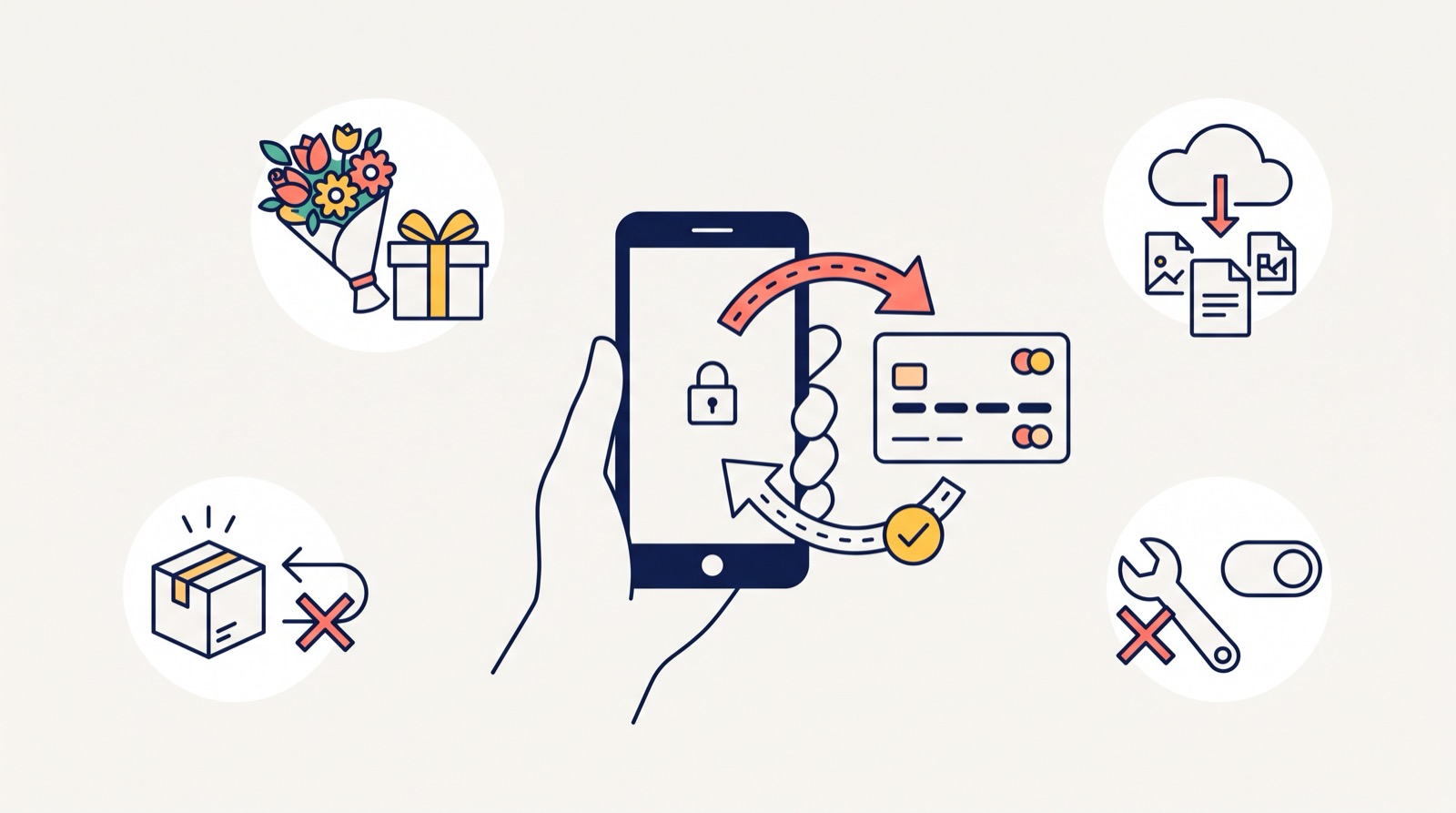
- Gift and flower shops. Shoppers often pay from a phone on the go: the auto-redirect and the return from a banking app remove extra steps.
- Digital goods and services. An order makes no sense without payment: fewer steps to payment means fewer abandoned orders.
- A store reducing its share of cash on delivery. If you want fewer refused parcels, make online payment simple. We explained how to manage pay-on-delivery in our article on cash on delivery.
- An owner without a tech team. Changing a key or payment system takes five minutes in the admin panel.
FAQ
Which payment systems are supported? LiqPay, monobank, Fondy and WayForPay. Service terms and fees are set by the payment system itself, so check them with it.
Do I need a developer to connect payments? No. Keys, test mode and the main provider are set in the admin panel. A developer is needed only if the form shows a warning about the notification address.
What if the shopper paid from another device? Nothing: after returning, the "Thank you" page opens for their order, and the status updates after the payment system's notification.
Can I test payment without real money? Yes, turn on "Test mode". Do not forget to turn it off before you start selling.
Where can I see the technical details of a transaction? On the "Payments" admin screen: amount, provider, processing status and the payment system's response code.
All of this already works in every store on the platform. If you are only planning to create an online store, check the "cost of creating an online store" page: hosting, updates and support are already included in the subscription.
Summary: what you get
We turned online payments into something the owner sets up alone: a form tailored to each payment system with hints, a hidden secret key, test mode, a notification address with a "Copy" button and a warning about mistakes. After checkout, the shopper is taken to payment automatically, sees that the payment is being checked, and can retry in one click. All new platform features are in the "Features" section.