
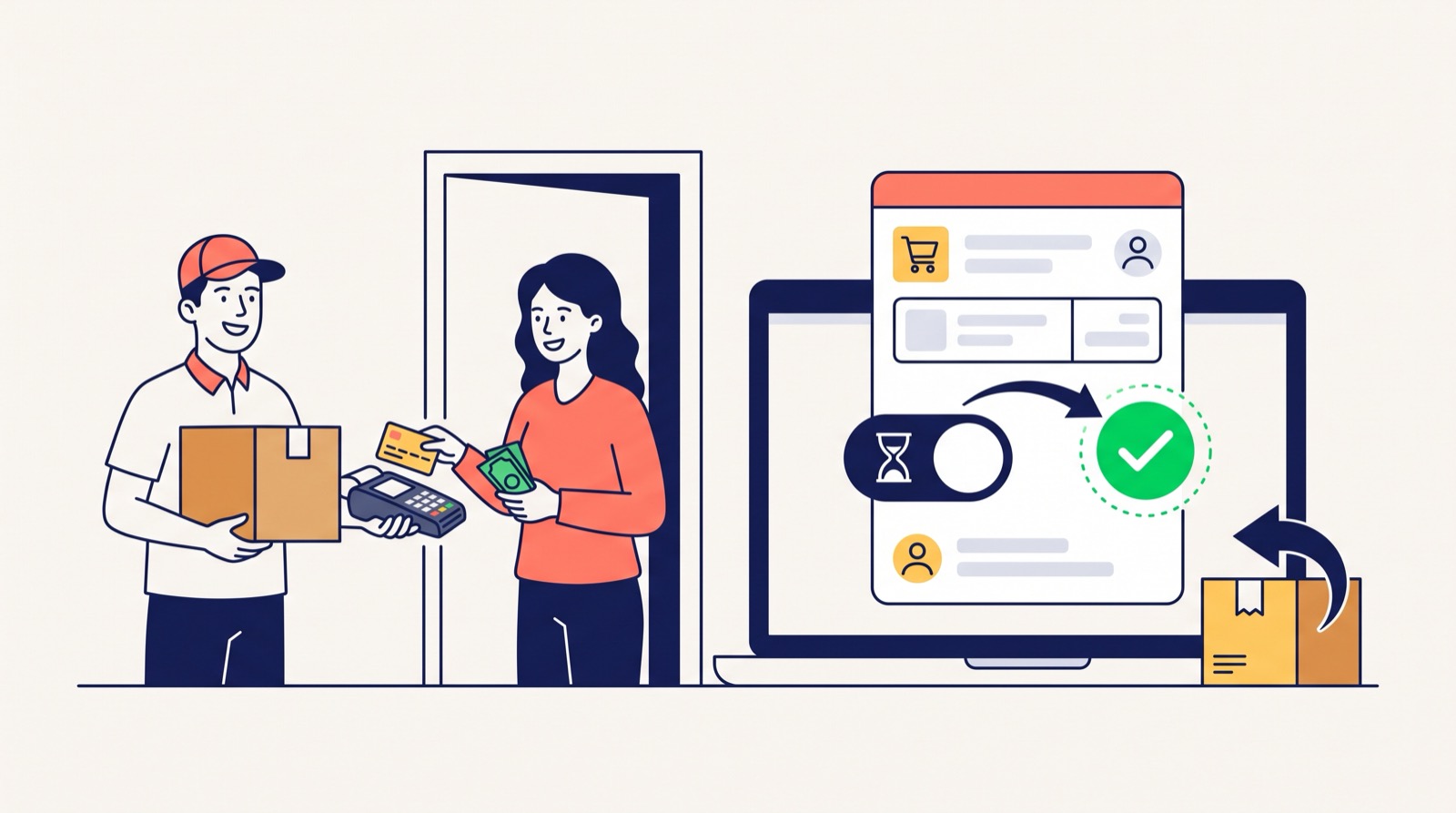
Cash on delivery means the shopper pays not on the website but when the parcel arrives: to the courier, at the carrier's branch or parcel locker, or at the store's checkout. For the shopper it is peace of mind: see the item first, pay second. For the store owner it is three risks that usually surface too late. The money for a shipped order is still in transit, while the goods have already left. Some parcels will never be collected, and you pay for delivery twice. And in the admin panel such an order often looks exactly like an unpaid online order, so you cannot answer even a simple question: how much money are we waiting for from the carrier right now? At Turboshop we decided that pay-on-delivery deserves its own accounting, not an "unpaid" label.
Why we rebuilt cash-on-delivery accounting
Turboshop payment statuses used to be built around payment gateways: "Created", "Processing", "Paid", "Declined", "Expired". None of them fitted a cash-on-delivery order. Managers set "Created", and the order stayed "unpaid" for years although the money had long arrived. Or they set "Paid", and reports mixed online payments with cash. And there was no way at all to mark a refused parcel: it got lost among ordinary cancellations.
We saw the consequences in store numbers: "unpaid" orders worth hundreds of thousands that were in fact either paid or already returned. So we separated the two worlds. Online payment follows gateway statuses, pay-on-delivery follows its own statuses that make sense to a manager. And the platform itself makes sure they are not mixed up.
What cash on delivery means for a store: three states of money
Strip away carrier details, and a pay-on-delivery order has only three states. We made exactly these the system payment statuses:
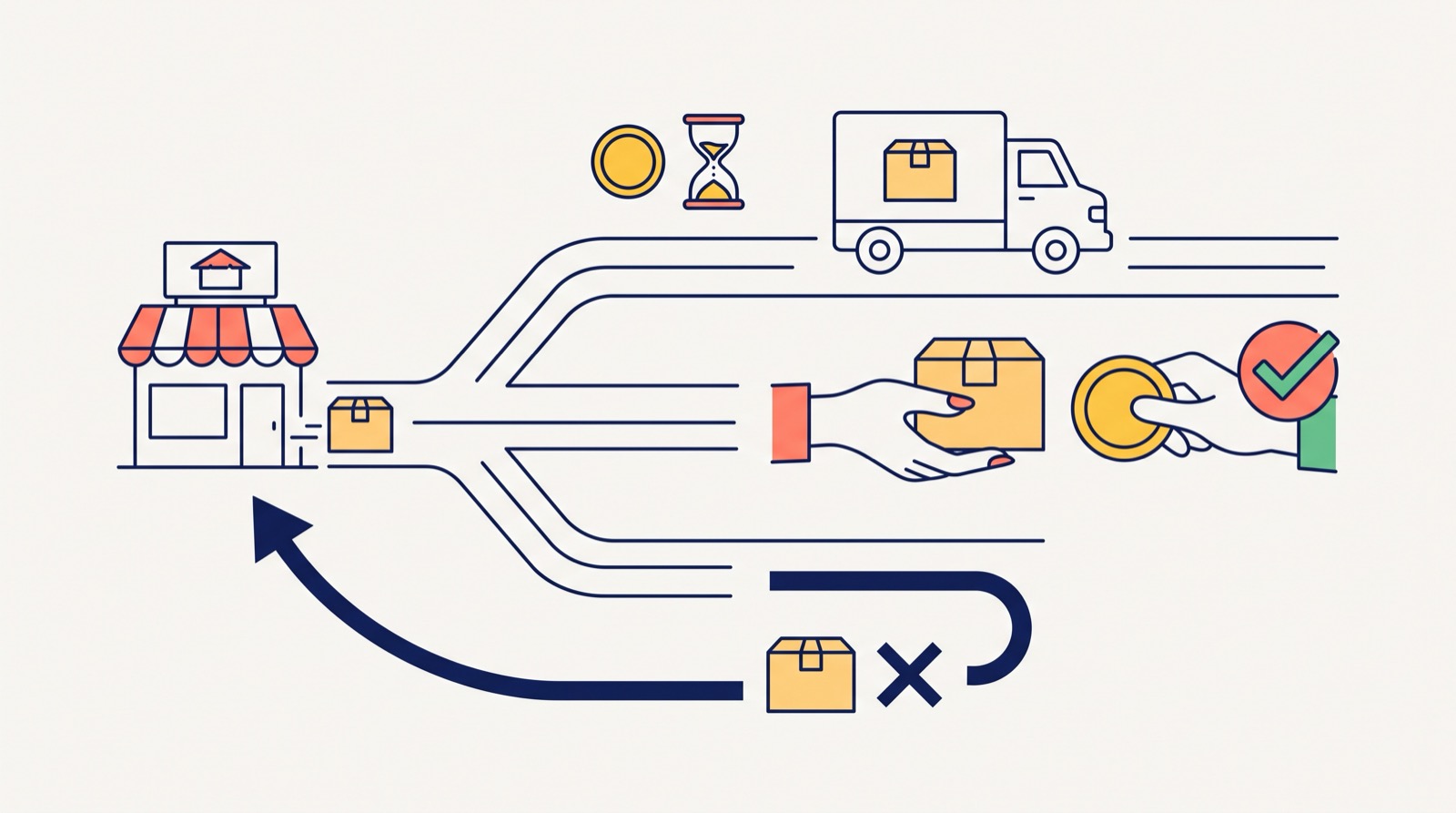
- "Awaiting payment on delivery" — the goods are shipped or being prepared, the shopper will pay on handover. This is money in transit.
- "Paid on delivery" — the shopper collected the parcel and paid. The order counts as paid.
- "Parcel refused" — the shopper did not collect the order, the parcel is coming back. This is a direct loss on delivery, and you need to see it separately.
Every new order with an offline payment method immediately gets "Awaiting payment on delivery", with no manager involved. Then the manager sets "Paid on delivery" or "Parcel refused" when the carrier's report arrives.
The "Online payment" switch on a payment method
To let the platform know which world an order belongs to, we added one switch to the "Payment methods" directory. The list itself has not changed: courier payment, cash on delivery, online payment, prepayment, payment at the checkout — the same options the shopper sees at checkout.
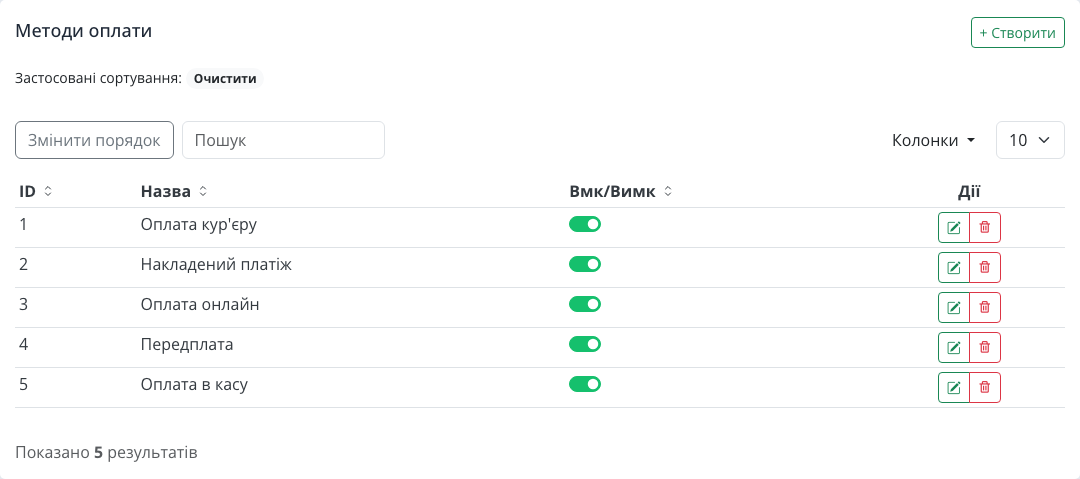
The method form now has an "Online payment" switch. For cash on delivery it is off: such orders get "Awaiting payment on delivery". For online payment it is on: the order follows the payment service statuses. Bank-transfer prepayment is also an offline method: the money does not come through the payment service on the website.
Payment statuses: group and channel
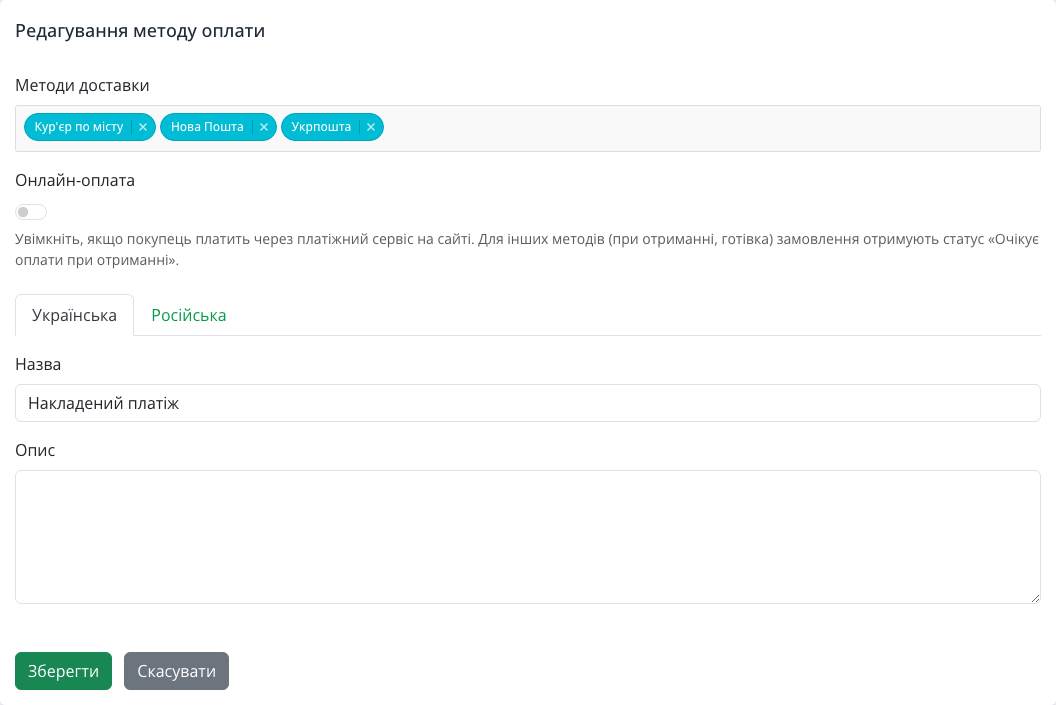
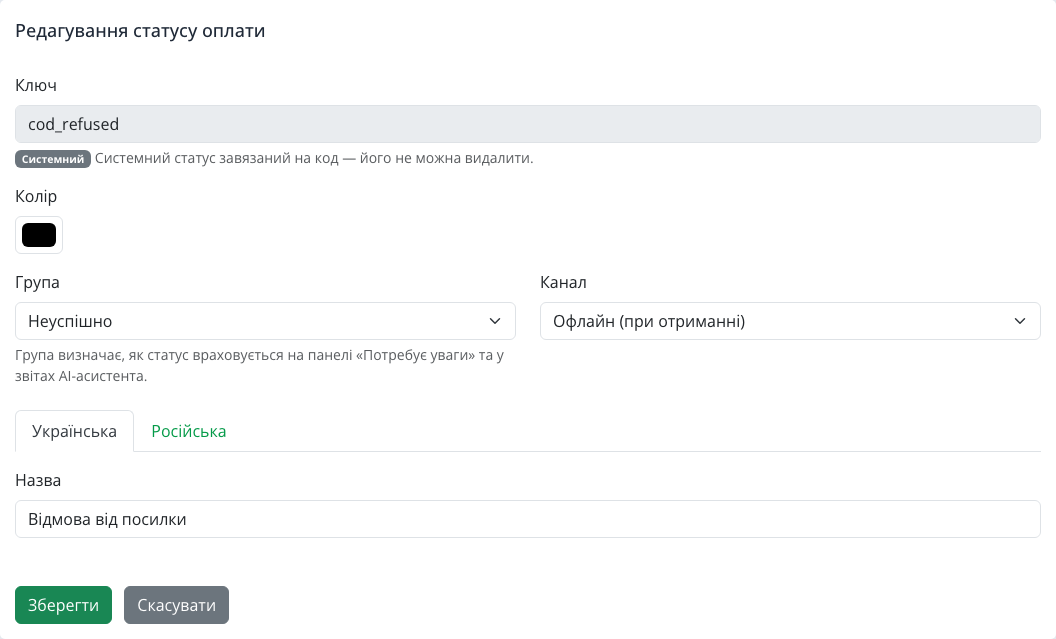
The "Payment statuses" directory got three new system statuses for pay-on-delivery, and the "reversed" status now has a clear label, "Refunded". System statuses cannot be deleted, but you can change their name and colour to suit your team.
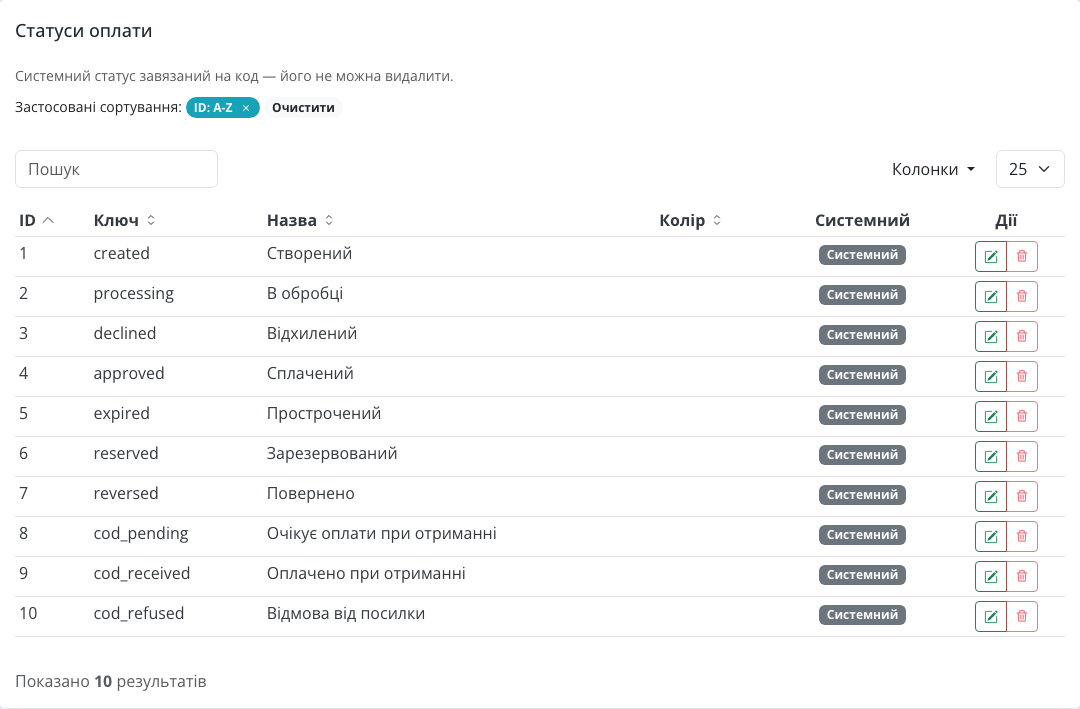
The key change is in the status form. Every status now has a group (paid, pending, failed, refunded) and a channel (online, or offline on delivery). The group tells the platform how to count money: "Parcel refused" is "Failed", "Paid on delivery" is "Paid". If you create your own status, such as "Paid at the checkout", choose the group that matches the real state of the money, and reports stay correct.
Order card: statuses will not get mixed up
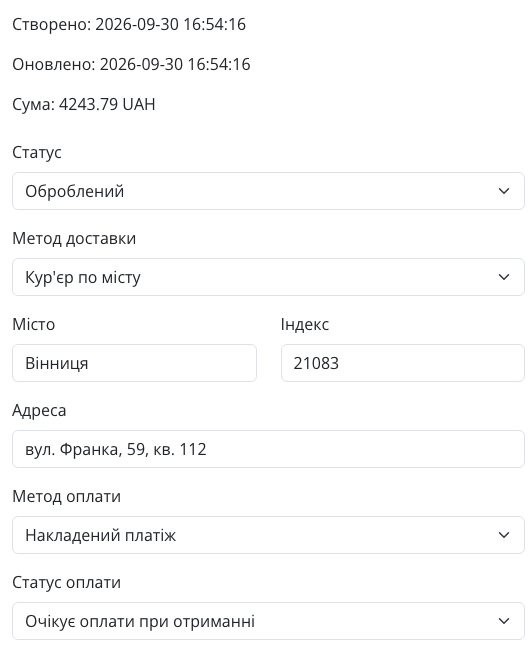
In the order card, "Payment method" and "Payment status" sit side by side. For a cash-on-delivery order you see "Awaiting payment on delivery", an honest state rather than "unpaid".
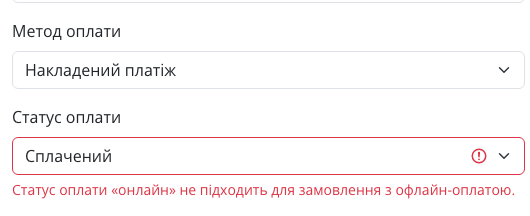
If a manager mistakenly picks a gateway status such as "Paid" or "Expired" for an order with an offline method, the form will not save and shows a hint. The reverse case works the same way. Through the API such a value will not pass either: the integration gets a rejection with an error. We did this on purpose: one random status mistake breaks a report, and a report drives the owner's decisions.
Order status change log
Along with this, we started keeping an order status change log: from which status to which, when, and who made the change — a manager in the admin panel, an integration via the API, or the system itself. The log has no separate admin screen; it works under the hood. The "not shipped on time" check relies on it: the platform knows how long an order has been in the "Processed" status. The AI assistant sees it too when you ask about a specific order. We covered this in detail in "Where am I losing money right now?", where refused parcels are a separate risk type.
How to run cash on delivery: practical tips

- Mark methods correctly. Open "Store → Payment methods" and make sure the "Online payment" switch is on only for the method where the shopper pays on the website.
- Close statuses daily. Got the payout register from the carrier? Set "Paid on delivery" on each order. A parcel came back? "Parcel refused". Then the "in transit" amount is always real.
- Watch refusals separately. If the share of refusals grows, look for the cause: the item does not match the photo, delivery took too long, the shopper was not told about the shipment.
- Confirm large orders by phone. For expensive items it makes sense to agree on a partial prepayment and record it with a separate offline "Prepayment" method.
- Rename statuses for your team. A system status name and colour change in the form, while group and channel stay correct.
- Offer an alternative. Some shoppers will happily pay online if it is simple. We will explain how we set up online payment in a separate article.
Who gains the most
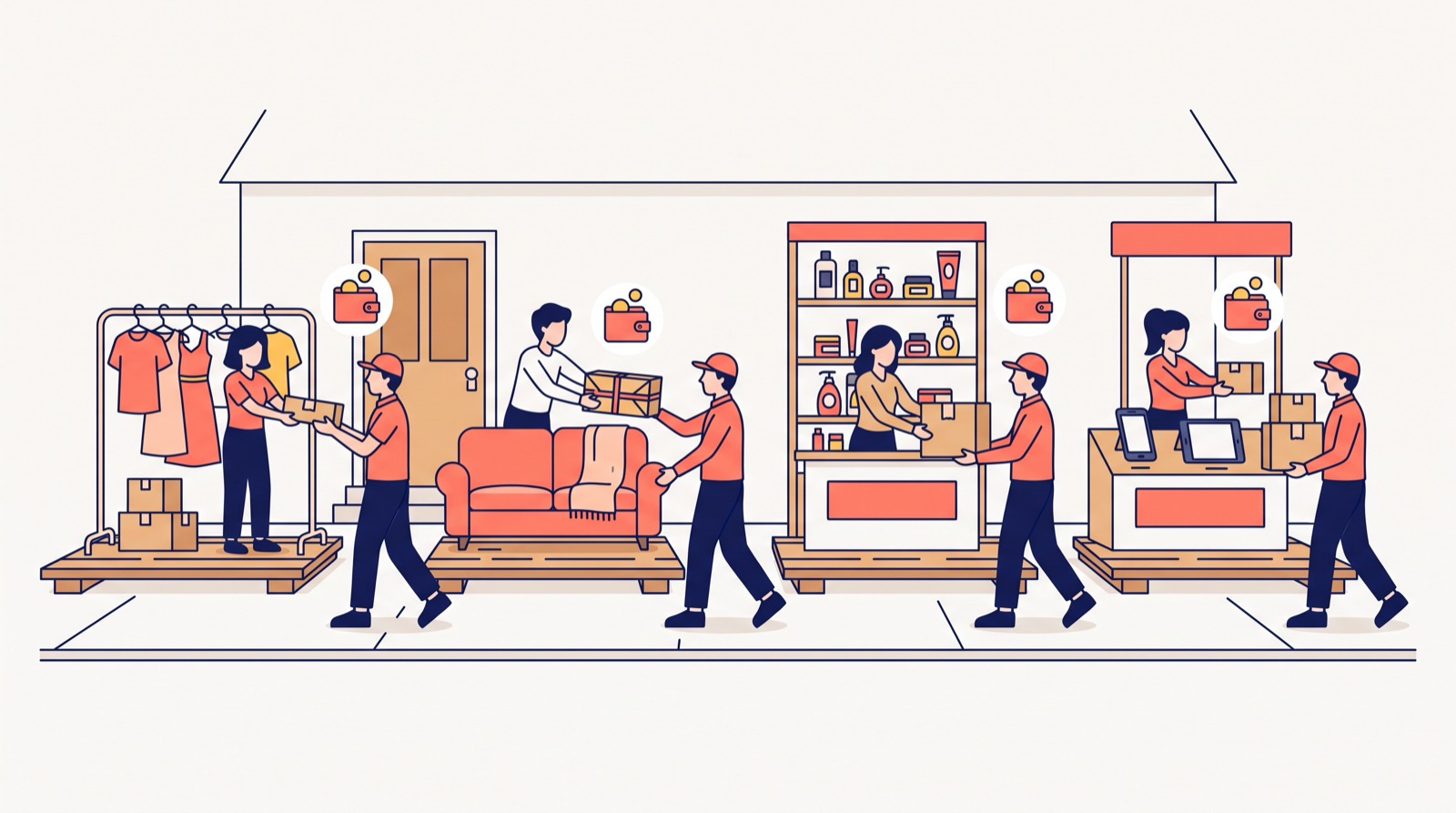
- Clothing and footwear. Trying items on at the branch and refusing due to size is common. Now you see how many parcels come back and for what amount.
- Home goods and electronics. Large orders and long delivery: money in transit can exceed daily revenue, and you need to see it on its own line.
- A store with several managers. Statuses will not get mixed up: the form will not let anyone set an online status on a cash-on-delivery order.
- A store integrated via the API. A CRM or accounting system cannot write a wrong-channel status, and the log shows the change came from the integration.
FAQ
What is cash on delivery in simple terms? The shopper pays for the order on receipt: to the courier, at the carrier's branch or parcel locker, or at the checkout. The store receives the money after the parcel is handed over.
Do I need to configure anything after the update? Check the "Online payment" switch on your payment methods. The new system statuses appear automatically; if you already had a status with the same name, the new one gets a "(system)" mark, and you can rename it.
Who sets "Paid on delivery"? A manager in the order card once the carrier's money arrives. Or your integration via the API.
What happens if I set "Paid" on a cash-on-delivery order? The form will not save and shows a hint next to the "Payment status" field. Such an API request is rejected as well.
Can I have my own payment statuses? Yes. Create a status, choose the group by the real state of the money, and leave the channel empty if needed: such a status fits any method.
All of this already works in every store on the platform. If you are only planning to open an online store, see what else the Turboshop online store builder can do.
Summary: what you get
We made cash on delivery a full part of accounting: an order immediately gets "Awaiting payment on delivery", then "Paid on delivery" or "Parcel refused"; online and offline payments are not mixed, and every order status change is recorded in the log. You see money in transit and refusals separately instead of losing them among "unpaid" orders. If you send parcels to someone else, the "Another recipient" feature will help too. All new platform features are in the "Features" section.