
We at Turboshop regularly look into the "What people search for" section of our clients' stores, and we keep seeing the same picture. A buyer types "laptop", "kicks", "windbreaker" or a transliterated word into search and gets "No products found". Yet the laptops, sneakers and jackets are in the catalog; they are simply called "Lenovo IdeaPad notebook" and "Leather sneakers". A person who has already arrived at the site and already wanted to buy leaves for a competitor over a single word. So we added a "Search tags" field to products: service synonyms buyers actually use, but which never appear in the name or description. They are invisible on the storefront, yet search finds the product by them and ranks it above a match in the name.
Why "No products found" is the most expensive page in a store
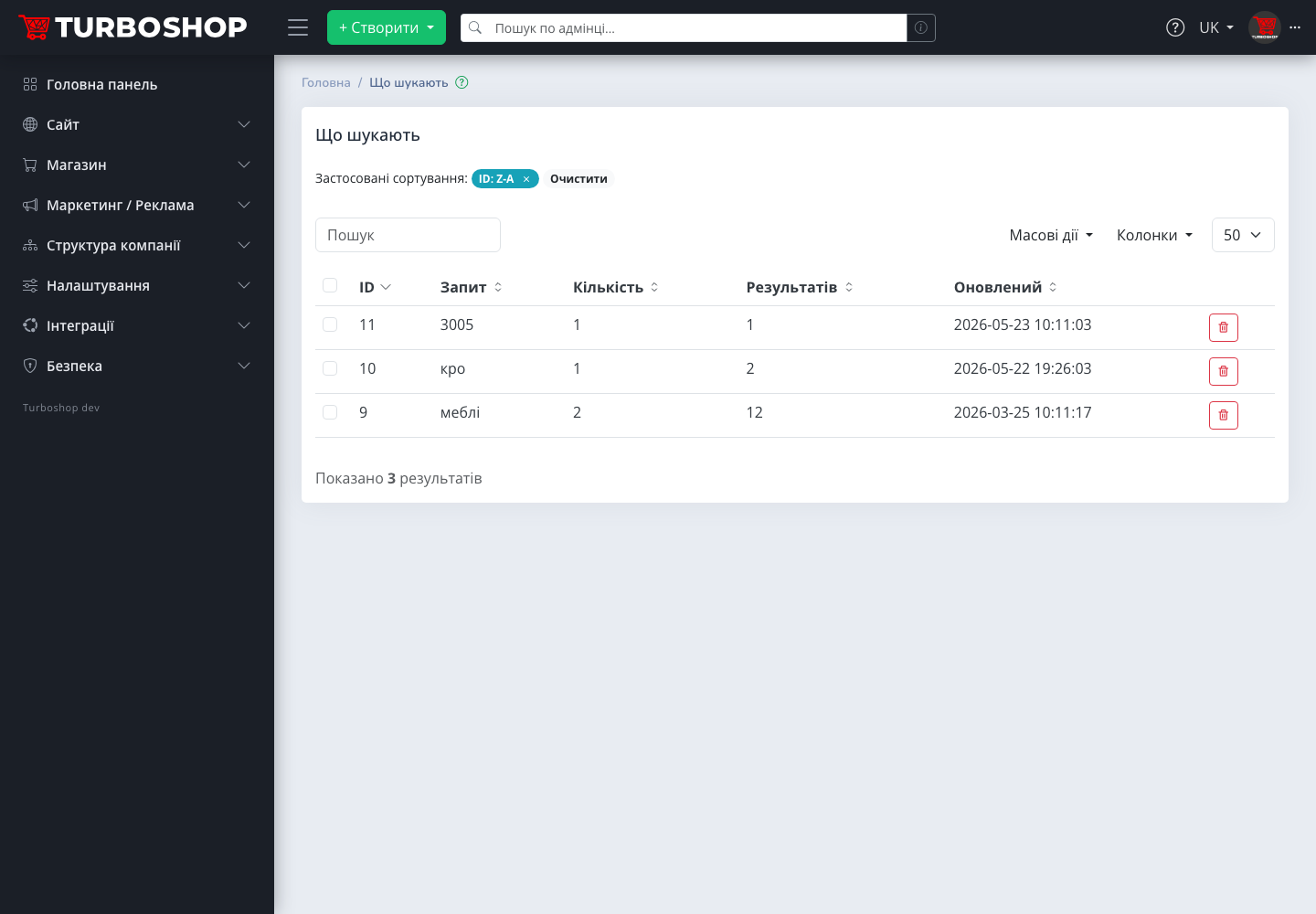
Only a minority of visitors use site search, but they are the ones closest to buying: the person knows what they want and is not going to browse the catalog. Before this update, site search looked for words only in the SKU, name and description. Everything a buyer calls differently from the supplier's price list was left out:
- slang and abbreviations: "laptop" for "notebook", "kicks", "telly", "washer";
- another language or transliteration: "sneakers" against a Ukrainian name, Cyrillic against Latin;
- a model name without the brand: "IdeaPad", "Air Max";
- everyday names: "windbreaker" instead of "wind-resistant jacket", "belt" instead of "strap".
We deliberately did not go down the "smart search" road with morphology and machine learning: it is expensive, slow on large catalogs and often finds the wrong thing. Tags are a simple, honest tool: you tell the storefront which words your buyers use for a product, and search obeys.
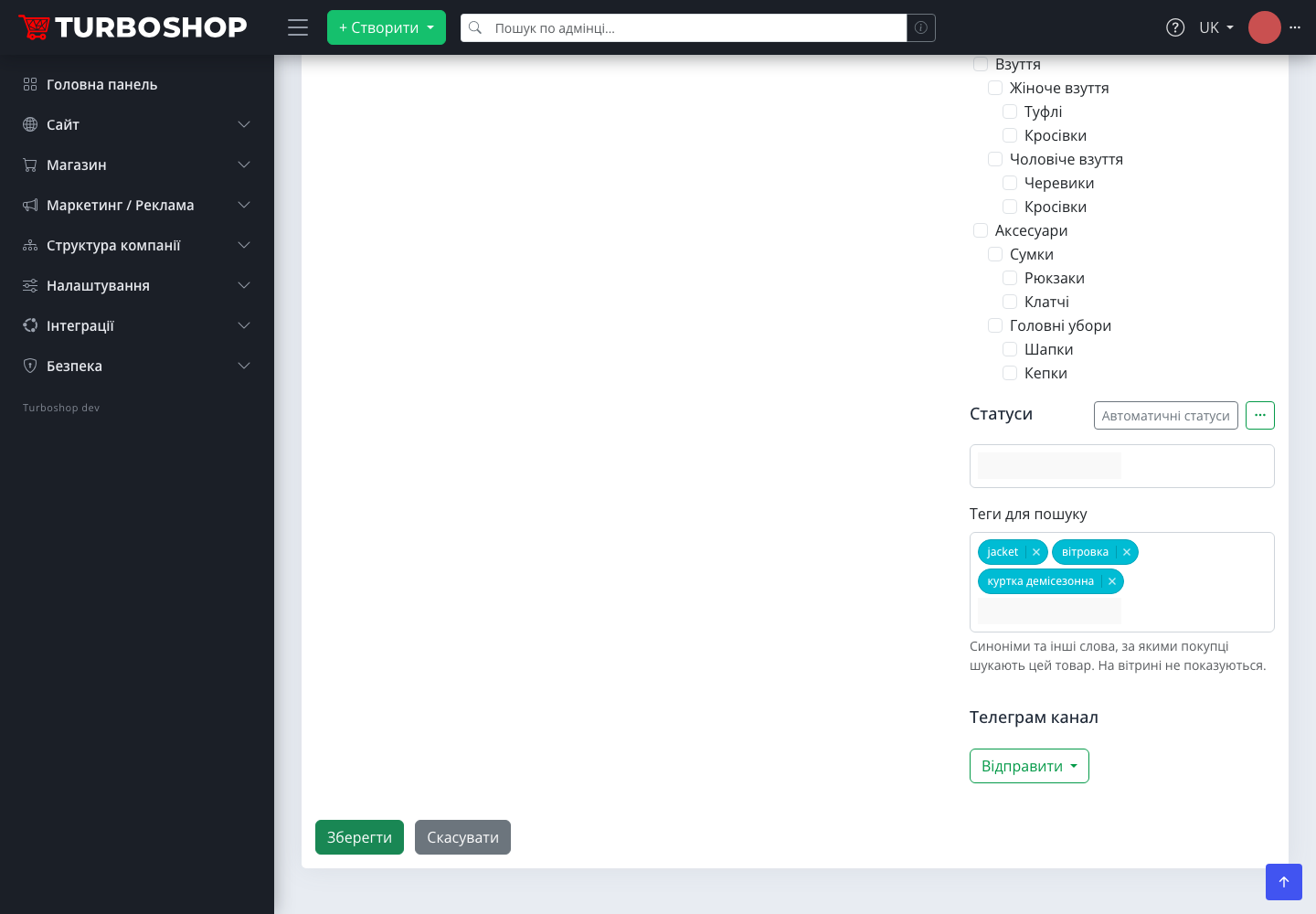
The "Search tags" field in the product card
We put the field on the "Main" tab of the product card, in the right column under "Marketing segments", where the manager already sets categories and statuses. Under the field there is a hint: "Synonyms and other words buyers use to find this product. Not shown on the storefront". Words are added as chips: type "windbreaker", press Enter or a comma, and the tag is ready. We made sure Enter in this field does not submit the whole form: a manager adding ten synonyms in a row should not fear saving a half-filled product by accident.
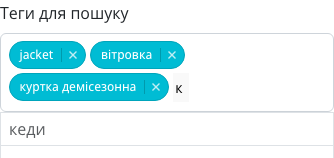
While typing, the field suggests tags that already exist in the store, up to eight substring matches. This matters more than it seems: without suggestions a store gradually accumulates "kicks", "Kicks" and "kicks " with a trailing space, each living its own life. We also ignore letter case and strip extra spaces, invisible characters and HTML, so a tag is always stored clean.
The "Product tags" section: order among synonyms
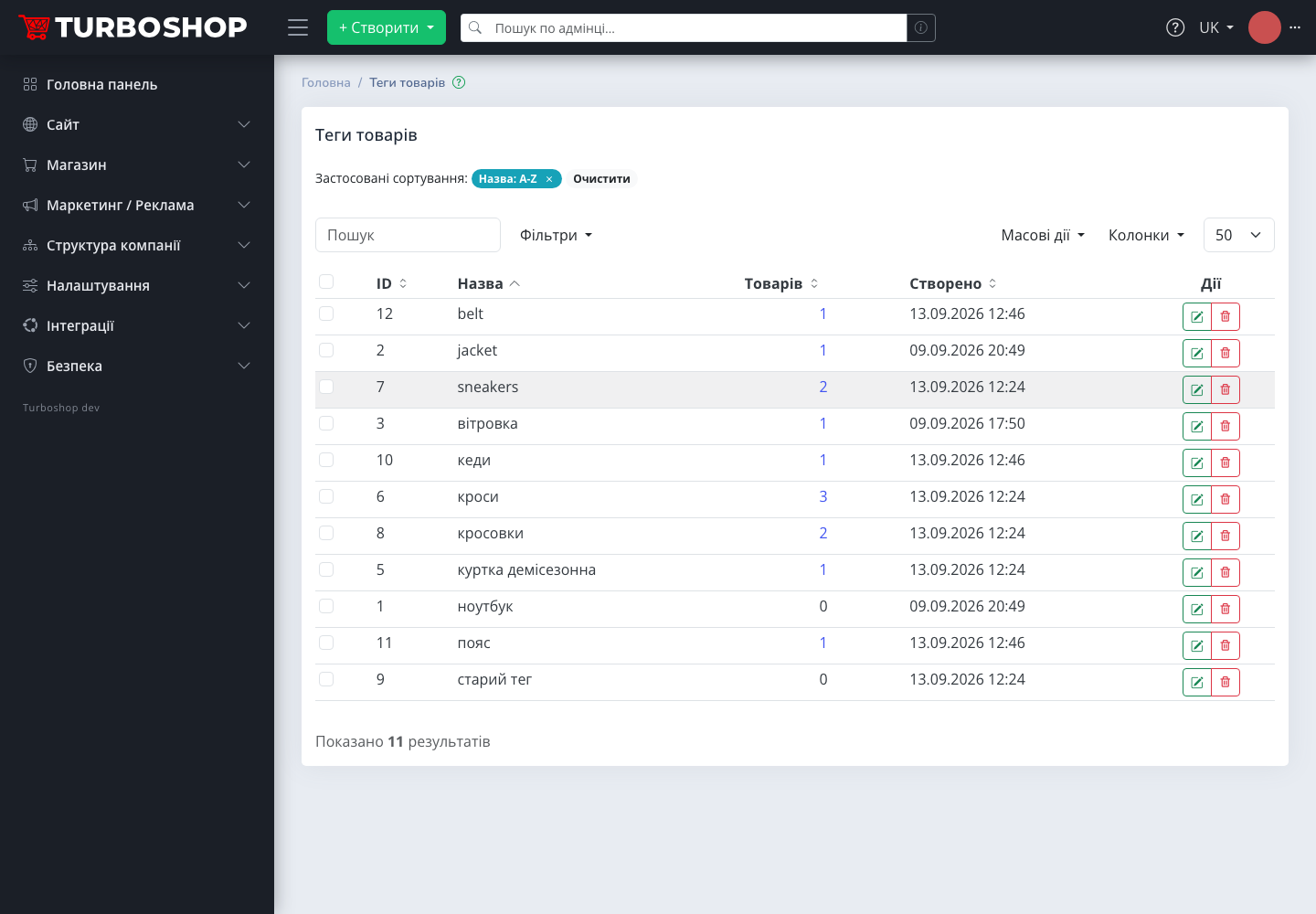
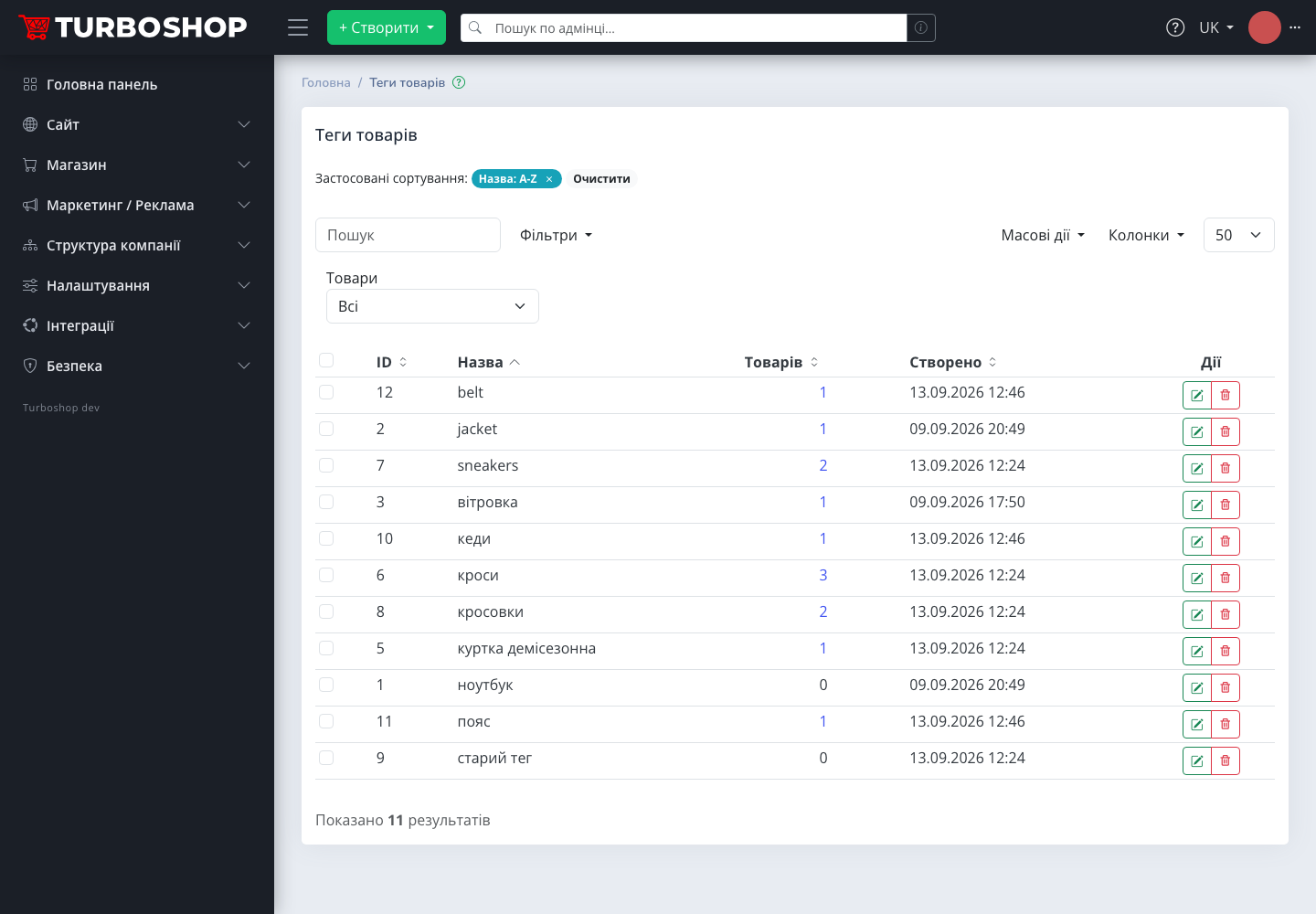
Once there are more than a few dozen tags, they need managing. So we added a dedicated "Product tags" section to the "Store" menu. The table shows the tag name, the number of products and the creation date; click the count and you see every product with that tag. The "Products" filter shows tags "Without products", the ones left behind after products were deleted or re-tagged. We deliberately do not delete them automatically: during an exchange with an accounting system tags can be detached and attached in batches, and auto-cleanup would make the directory unstable. Instead there is bulk deletion: tick the extras and click "Delete".
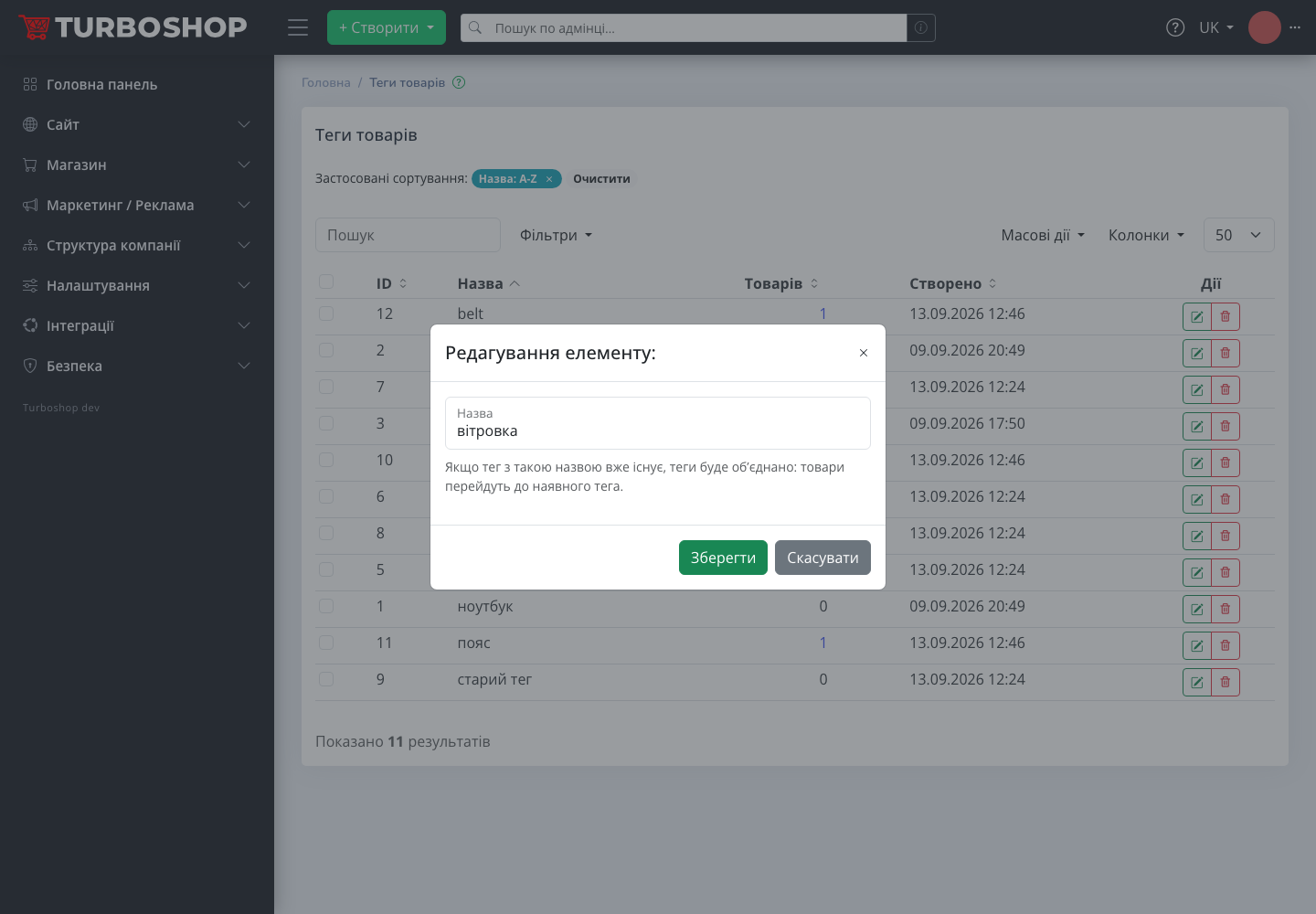
The most useful button in the section is rename. If you rename "trainers" to "kicks" and a "kicks" tag already exists, we do not create a duplicate but merge the tags: all products move to the existing one and the old one disappears. A hint right in the dialog warns about this. That is how you tidy up in a minute the synonyms your managers have been typing every which way for months.
The "Tag" filter in the product list
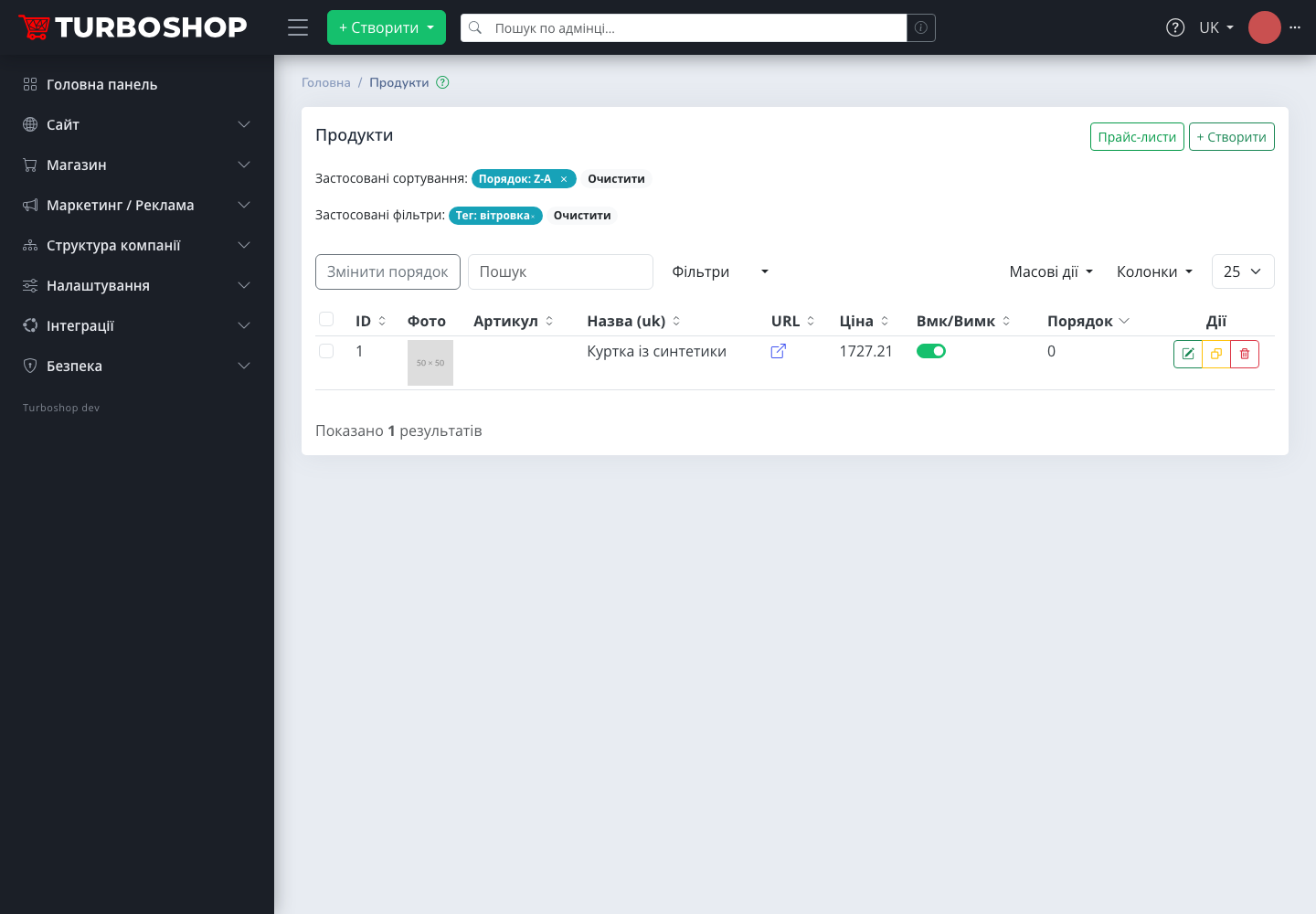
The product list gained a "Tag" filter. It lists only tags that have products, so orphans do not clutter it. It is handy for audits: pick "windbreaker" and see whether every jacket in the catalog got the synonym, or someone forgot about the new delivery.
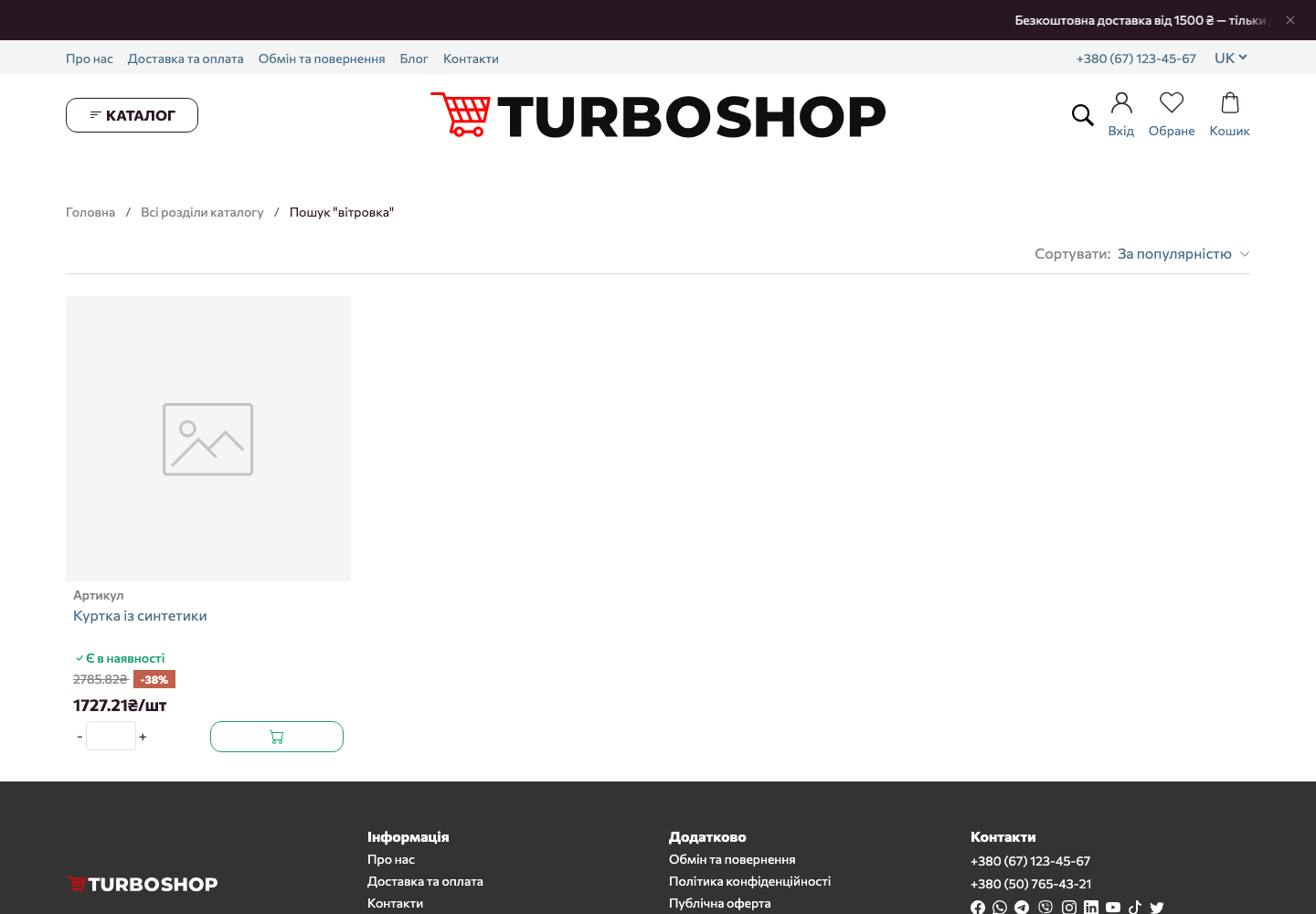
How tags work on the storefront: above the name, below the SKU
We built tags into the same search that powers the dropdown in the header, the results page and the catalog, so there is nothing to switch on. The key decision was about ranking. We decided that a tag that matches the query exactly outranks a match in the name: if you deliberately tagged a product "windbreaker", then for the query "windbreaker" that product should come first, not a jacket that happens to have the word somewhere in its description. A query word inside a tag we ranked below the name but above the description. For the buyer the order is: exact SKU, then exact tag, then name, then description.
One honest limitation we warn about: there is no morphology, matching is by substring. So the query "notebooks" will find the tag "notebook", but not the other way round, a longer query against a shorter tag. We recommend adding both forms if buyers really type them that way; "What people search for" tells you which ones.
Tags from accounting systems and via the API
If the catalog is managed by an accounting system, tags do not have to be typed by hand. The product create and update methods in the API, as well as batch import, accept a tags field: a comma-separated string. We made the semantics predictable for integrators: no key in the request, tags stay untouched; an empty value detaches them all; a tag over a hundred characters returns an explained error instead of silent truncation. Responses return tags when requested with include=tags. So synonyms can be kept in your accounting system as a separate product attribute and exported together with products.
How to get started in ten minutes
- Open "Site → What people search for" and write down the zero-result queries of the last month.
- For each query find the product the buyer actually wanted and add the word to "Search tags" in its card.
- Add slang, transliteration and model names to your best-selling products; three to five tags per product is plenty.
- Once a month visit "Product tags": rename duplicates, delete orphans.
- If the catalog comes from an accounting system, ask your integrator to pass the
tagsfield in the import.
Examples by niche: the tags we recommend
- Clothing and footwear. "kicks", "plimsolls", "windbreaker", "hoodie", "sweatshirt", transliterated brand words; buyers rarely type "leather sports sneakers".
- Electronics. "laptop", "telly", "wireless earbuds", model names without the brand: "IdeaPad", "Galaxy A54".
- Auto parts. Everyday part names and analogue numbers: "brake pads" alongside the local slang, supplier catalog numbers.
- Food and drinks. "coffee beans" and "bean coffee", "oats" for "oat flakes", brand names in Latin and Cyrillic script.
- Home appliances. "washer", "dishwasher", "multicooker pressure cooker": the way people talk, not the way the manufacturer writes.
FAQ
Do buyers see the tags? No. Tags are not shown in the product card, in feeds or to search engines; they are purely an internal search tool.
How many tags can a product have? Up to fifty, each up to a hundred characters. In practice three to five is enough.
Do tags affect SEO? Not directly, since they are not on the page. Indirectly yes: fewer empty search results means more purchases from organic traffic.
What about tags that belong to no product? Filter "Without products" in the "Product tags" section and delete them in bulk. We never touch them automatically.
Does the theme need updating? No. Storefront search picks up tags after the platform update; templates stay the same.
Summary: what you get
We built search tags so that "No products found" stops being the answer to the words your buyers actually use. You get a field in the product card with suggestions, a dedicated section for keeping synonyms tidy, a filter in the product list, honest storefront ranking and an API field for accounting systems. Together with filters with counters and the fast storefront for large catalogs, it is one more step towards a store where the buyer finds what they need on the first try. All new platform features are in the "Features" section.