
"Backups" are backup copies of the store's database. From here you create new copies, download them to yourself and delete outdated ones.
What you see
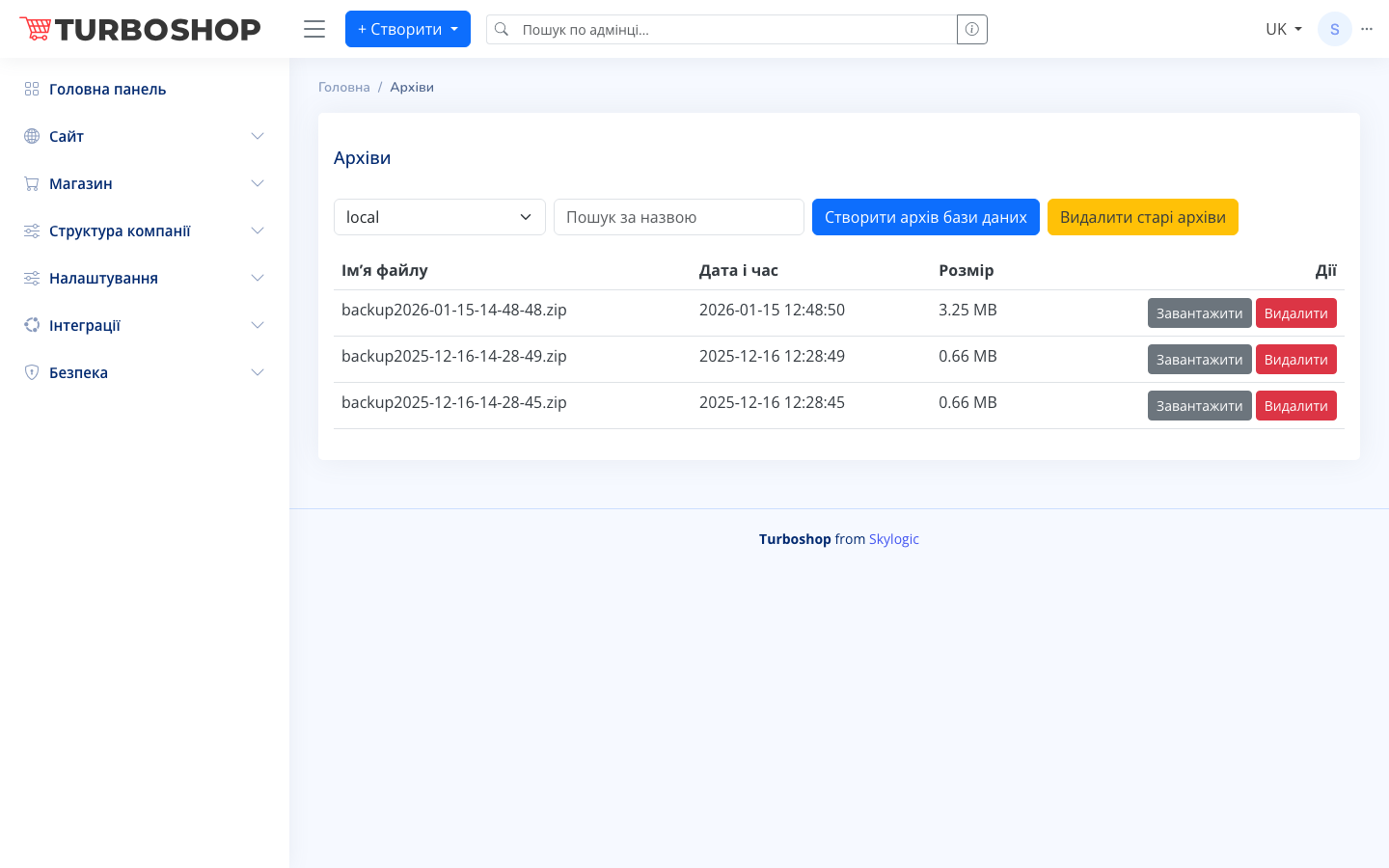
The "Backups" page with a toolbar at the top: a storage dropdown (for example local), a "Search by name" field, a blue "Create database backup" button and a yellow "Delete old backups" button. Below is a table of copies with columns: File name (for example backup2026-01-15-14-48-48.zip), Date and time, Size (in MB) and Actions with "Download" and "Delete" buttons for each row.
How it works
Click "Create database backup" — the system builds a new zip copy and it appears in the list. Use "Download" to save a copy to your computer and "Delete" to remove a copy you no longer need. "Delete old backups" clears outdated copies in bulk so they do not take up space.
Why it matters
Backups are your insurance against data loss. If something goes wrong (an accidental deletion, a crash, a failed update), you can restore the store from an archive. Create copies regularly and keep a fresh version off the server.