
“Catalogs” is the tree of site sections: a product catalog and an article catalog. Here you build the navigation structure that determines how easily a buyer finds what they need and how sections look in search.
What you see
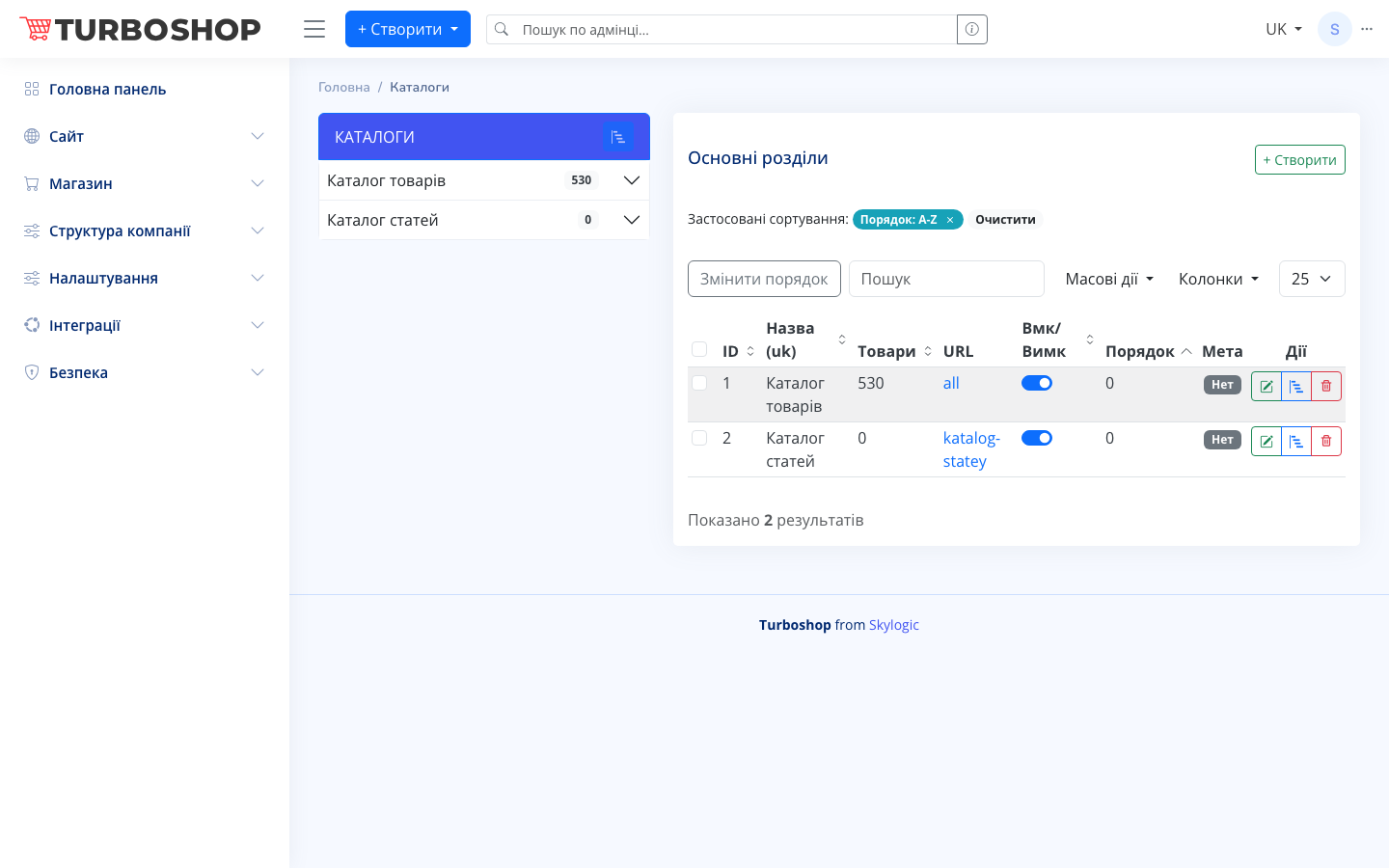
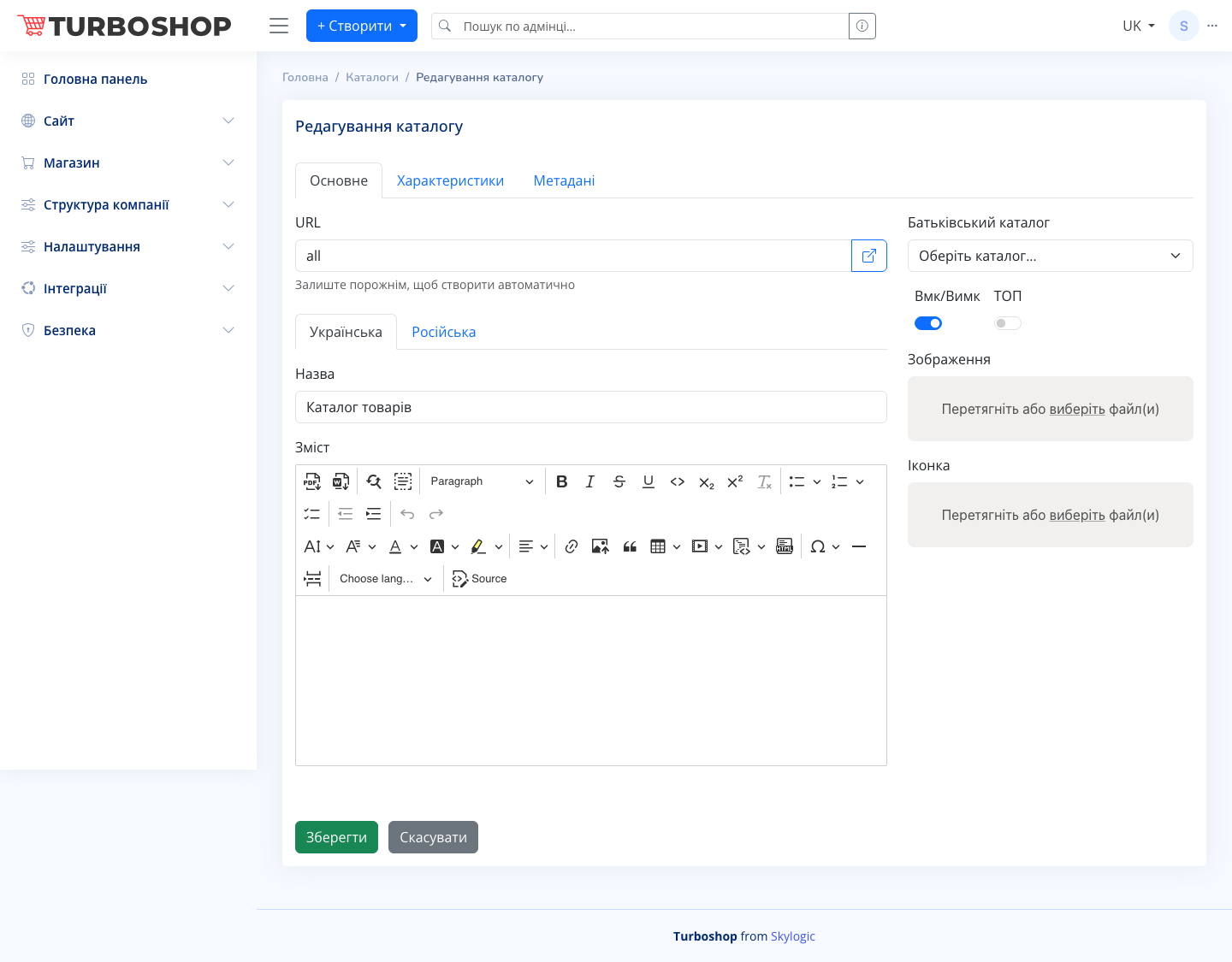
On the left is the “CATALOGS” panel with root sections and a nesting counter (for example, “Product catalog” — 530, “Article catalog” — 0). On the right is the table of the selected section, “Main sections”, with an active sort (“Order: A-Z”), a search field and a “Change order” button. The columns are: ID, Title (uk), Products, URL, an Enable/Disable toggle, Order, Meta and “Actions” (edit, reorder, delete). On the catalog edit screen there are tabs “Main”, “Attributes” and “Metadata”; a URL field, Enable/Disable and TOP toggles, a “Parent catalog” selector, “Title” and “Content” fields (a rich-text editor) for Ukrainian and Russian, plus “Image” and “Icon” uploads.
How it works
Pick a root on the left to see its sections. “+ Create” adds a new catalog; “Actions” → edit opens a card with all fields. The URL can be left empty — it is generated automatically. “Parent catalog” sets the nesting, the TOP toggle promotes a section, and “Change order” / “Order” define the display sequence. The “Metadata” tab stores SEO tags.
Why it matters
A clear catalog structure means a shorter path to the product and higher conversion. Filled-in URLs, images and metadata make section pages ready for promotion and bring traffic from search.